USB drive (included with the printer) x 1

1. Download the latest version of the DF2 motion board firmware file from https://www.raise3d.com/download/. Place the file in the root directory of the USB drive.
Note: Please do not change the name of the downloaded file. Changing the file name may cause the upgrade to fail.
2. While the printer is idle, insert the USB drive containing the latest version of the firmware file into the printer.
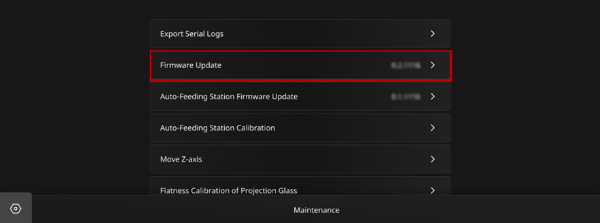
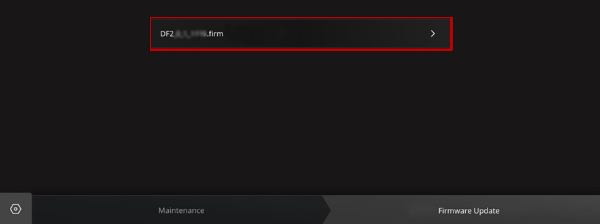
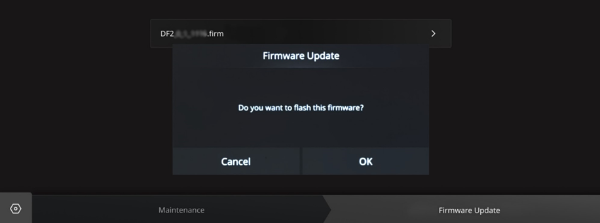
3. Tap Setting > Maintenance > Firmware Update on the touchscreen. Choose the folder with the firmware update file, and tap the latest version of the .firm file. Tap OK to confirm the update.
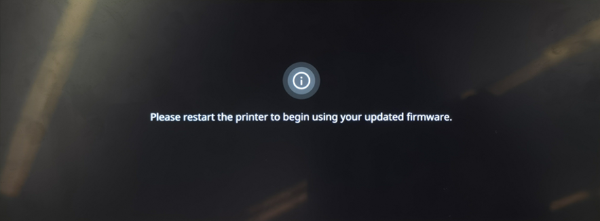
4. When the update is complete, follow the prompts on the touchscreen to restart the printer. Remove the USB drive, switch off the power at the back of the printer, then switch it back on to reboot the printer.
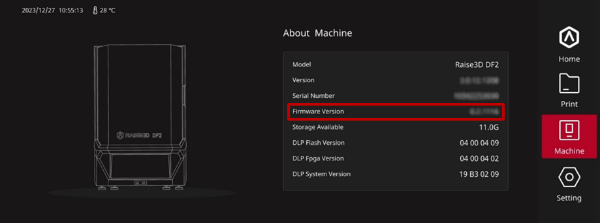
5. After the printer has booted to the Home screen, tap the Machine tab on the touchscreen to make sure the Firmware Version matches the version of the downloaded firmware file. If the latest version is shown, the DF2 motion board firmware update was successful.