

[ Manual N2&N2 Plus - How to Update the Motion Controller Firmware –V1.0 ]
You will be able to find the firmware at https://www.raise3d.com/pages/download
If you have a filament run out sensor get the firmware at https://www.raise3d.com/pages/filament-run-out-sensor-installation-instruction
Download the firmware that matches your printer type.
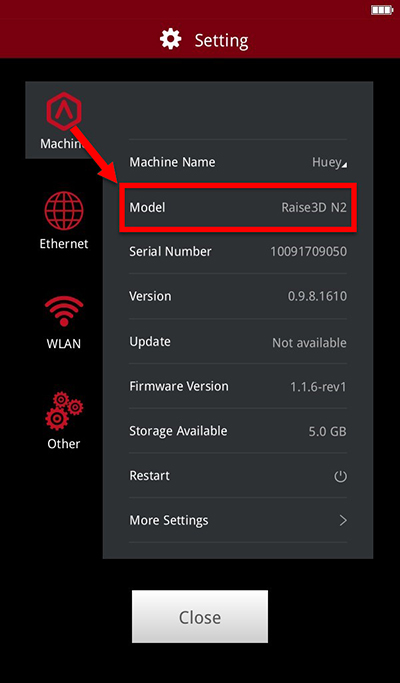
To verify the model of your printer, you can go to the settings menu on the touchscreen and see the “Model” line.
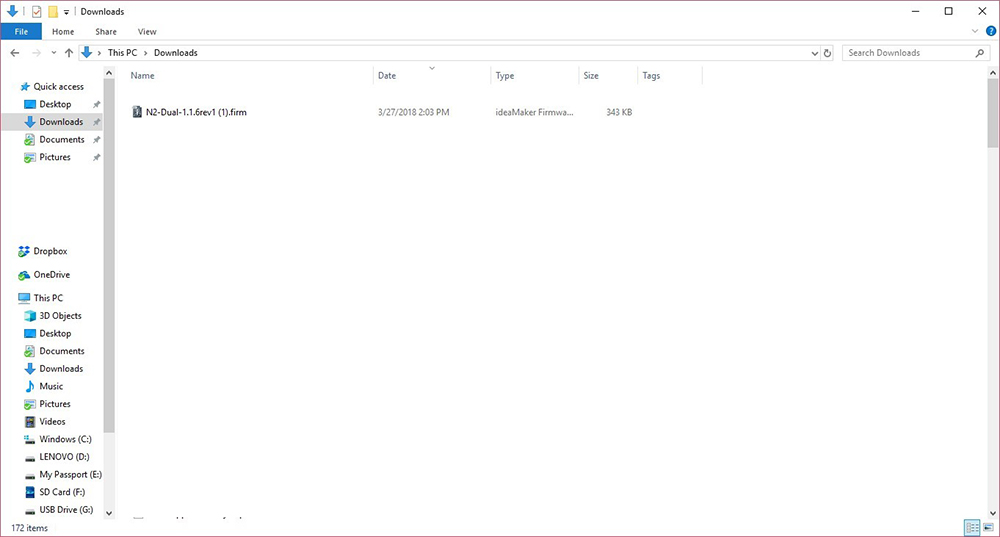
Once the firmware is downloaded, transfer it to a USB drive and plug the USB drive into the printer.
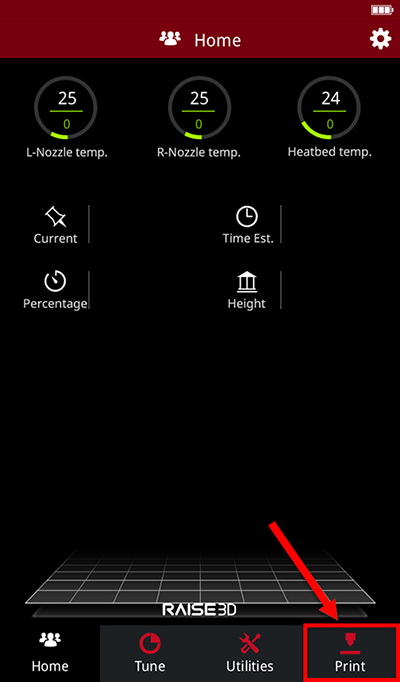
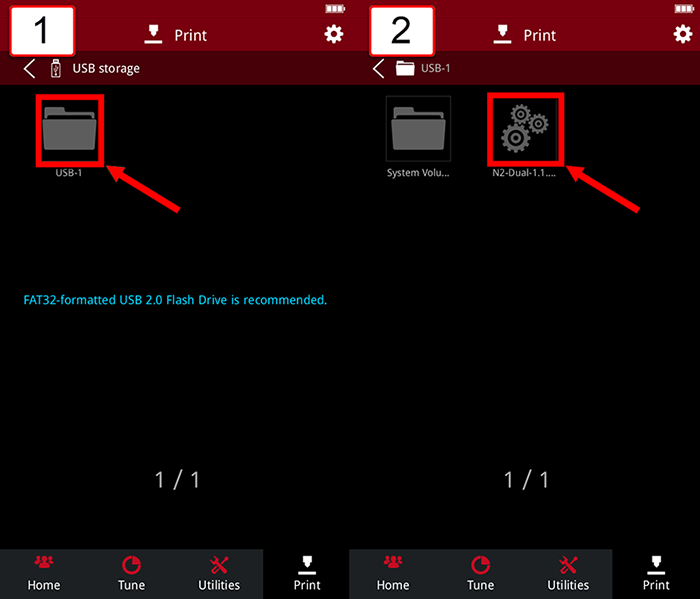
From the home screen proceed to the Print Menu
Select the USB Storage option.
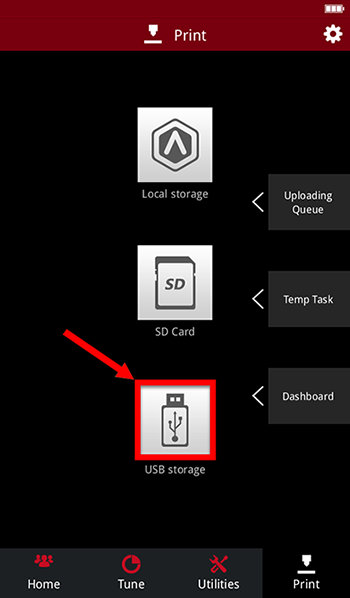
Select the USB drive with your firmware, inside the USB drive you will find the firmware file.
Select the firmware file will ask if you want to print it.
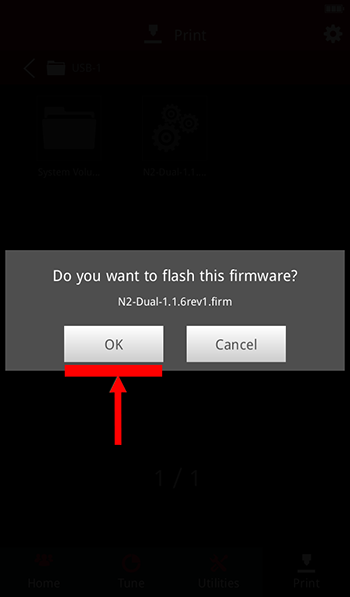
Once selected the screen will ask if you want to flash the firmware selected.
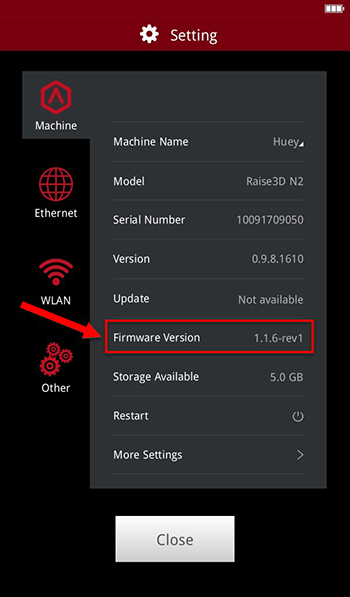
To verify the update, go back to the Settings menu to verify the firmware version matches the file used.
[ Manual N2&N2 Plus - How to Update the Motion Controller Firmware –V1.0 ]
-END-
