

You can view all printed models on Dashboard. Click “Add Tag”, you can add labels for printed tasks. The icon in the upper left corner of the print file queue shows the success or failure information.
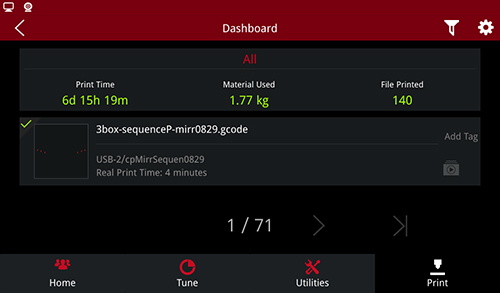
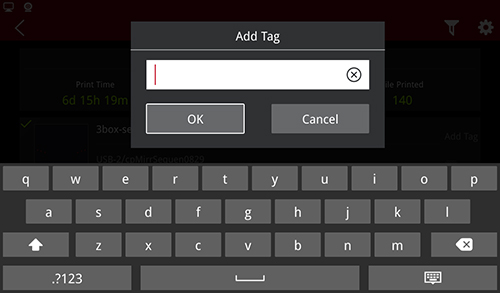
Add Tag

Click on the top right corner, a box will pop up as shown in the figure:
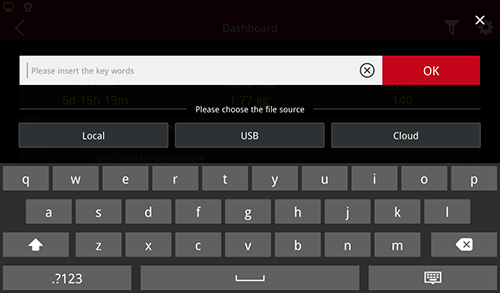
Filter
You can filter printing task records by clicking on the “Cloud”, “Local Storage”, “USB” according to the file source, while you can enter manually added labels for secondary screening. The screening results are shown below:
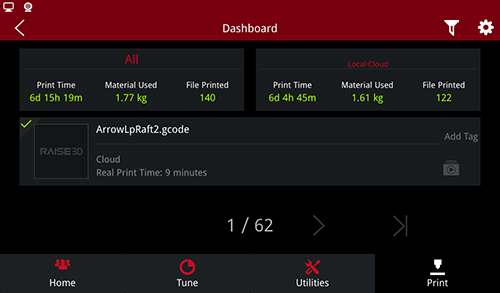
Filter Results
Select the files in the list and print them if they are in readable format.
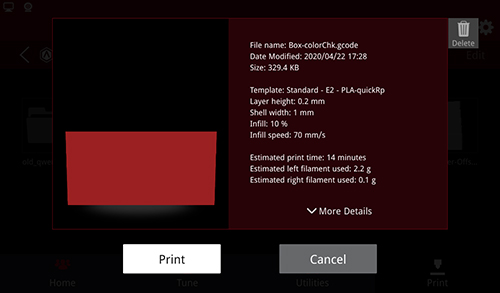
Printable files
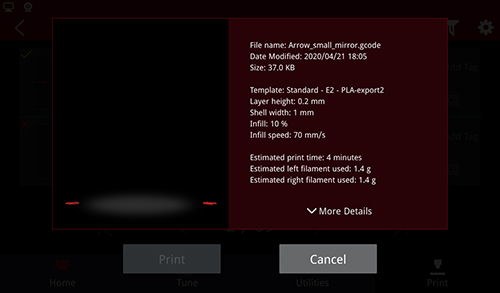
Non-printable files
Timelapse: click the wrench icon in the “Setting>Camera” to enter the camera advanced settings page. Turn on Timelapse, you can click video icon on the lower right corner of the Dashboard to view the Timelapse video. Turn on the “Enable Exporting Local Files to External Storage” in Settings > Security and Privacy, you can use USB devices to export Timelapse files. Export format is MP4 format.
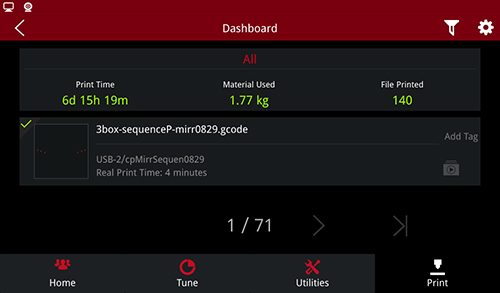
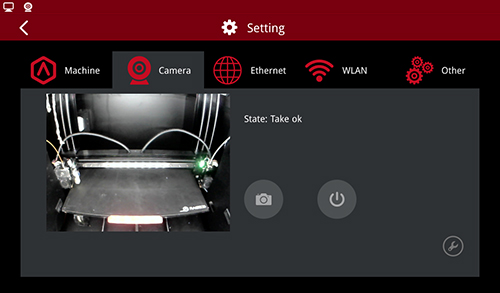
Export Timelapse files
-END-
