

(1) Local Update
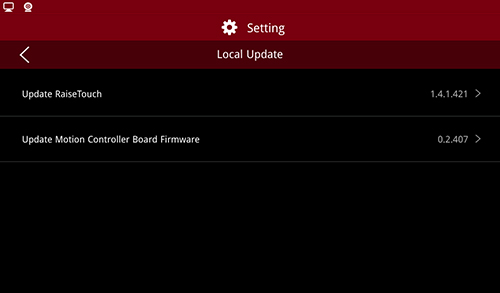
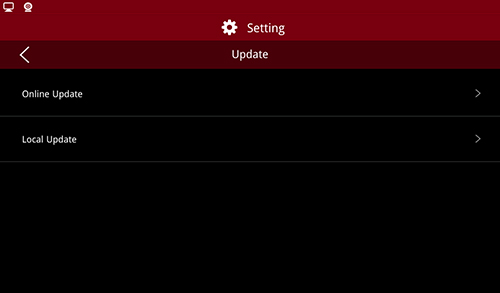
Click “Update >Local Update”, to enter local update. Insert a U disk with the installation package, the system will automatically detect whether the U disk contains a valid installation package. Then you can follow the wizard to update.
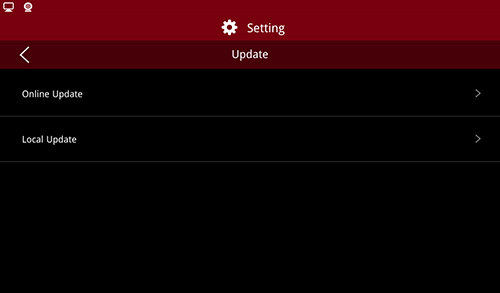
Update
Or you can insert a U disk and click “Setting >Restart”. System will automatically detect the installation package in the USB device and display the packages in the form of a list, as shown below:
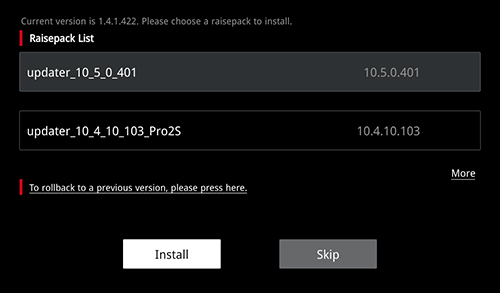
Install
Choose the installation package you want to install, and click “Install”. Click “More” to enter the installation package list page.
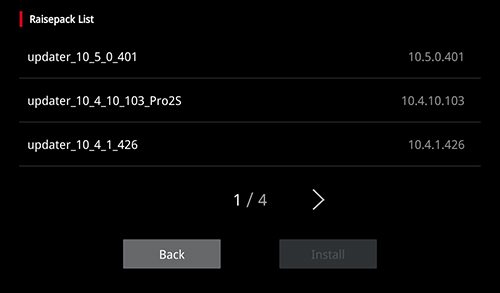
Raisepack List
If you want to install a previous version, click on the red box below to roll back the version.
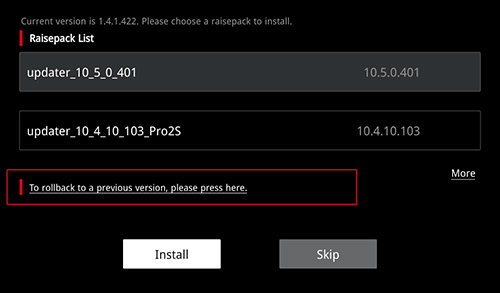
Rollback
Note: when a power-off restart or local update occurs, if a USB device containing the installation package is detected, the system will also enter the installation package selection page.
(2) Online Update
Click on “Update >Online Update”, to choose whether to turn on the automatic detection update.
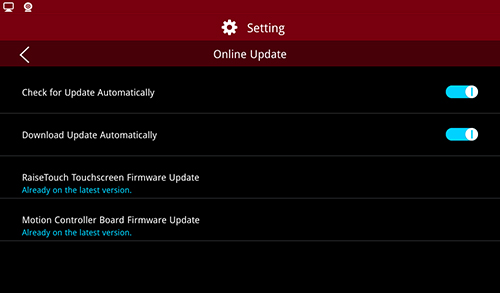
Click to turn on “Check for Update Automatically”, when the new update is detected, the touch screen will receive an update reminder, the location is shown in the following figure.

Update Message Floating Window
Click the floating window to view the update content in the update details box.
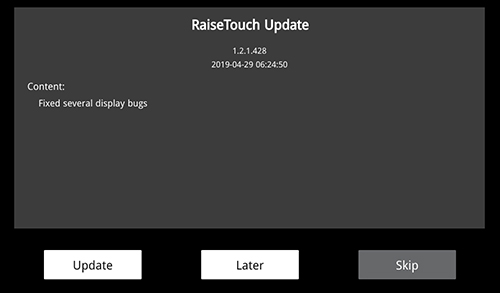
Update Details
Sets the updateable option in the “Online Update”.
If automatic download is turned on, the update details button will display install and close. Click “Install”, the installation interface will pop up. Click “Confirm” to confirm the installation. If you click “Cancel”, please install the package in your free time in the update page.
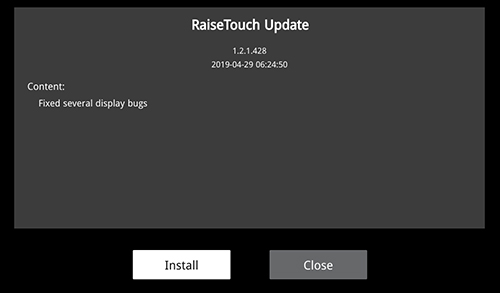
Update Details (Open Automatic Download)
If the auto download is not turned on, the update details buttons will display “Update”, “Later" and “Skip”. Click on “Update”, the update package will start downloading. After the download is complete, a dialogue box will pop-up. Select “Yes” for installation and select “No” to exit installation.
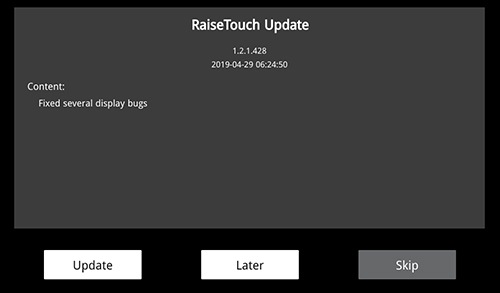
Update Details (Turn Off Automatic Download)
Click on “Later”, the touch screen will pop up a floating window after 5 minutes with the updating information.
Click “Skip”, update message will no longer be prompted.
If the download failed all the time, please visit www.raise3d.com to download the latest update package manually.
-END-
