

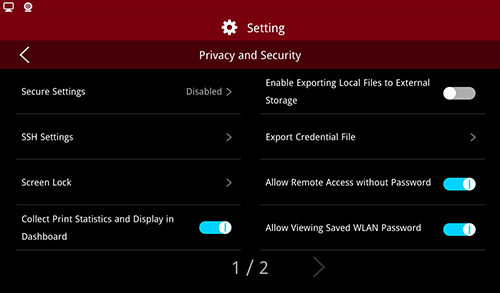
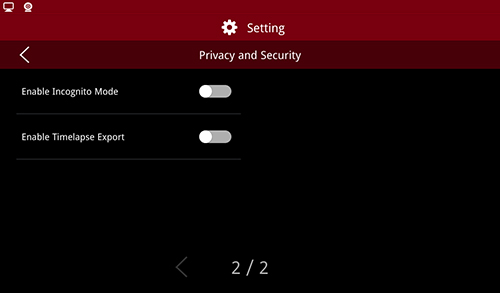
Privacy and Security
(1) Secure Settings using Secure Password
When enabled, you will need to input your secure password when editing the settings under Privacy and Security, including reset settings and temperature limit settings.

Enable Secure Settings
When enabling the SSH server for the first time, the secure password is a random number which can be set.
When the SSH server has been previously enabled, the current security password defaults to the SSH password.
In case you forget your secure password after enabling “Secure Settings”, the credential file will be backed up automatically.
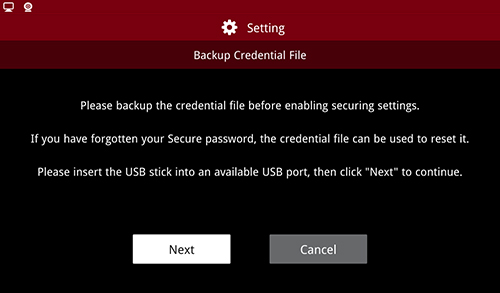

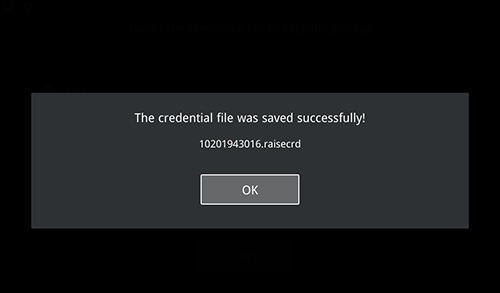
Export the Credential Files
As the security service is turned on, each time you enter the SSH password, lock screen password and other security and privacy related passwords, you need to check the security password first.
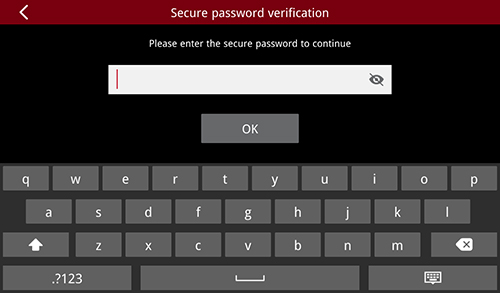
Security Password Verification 1
After the security password is successfully verified, you can choose :
a. Security password required for all changes;
b. Security password not required for 15 minutes after verification.
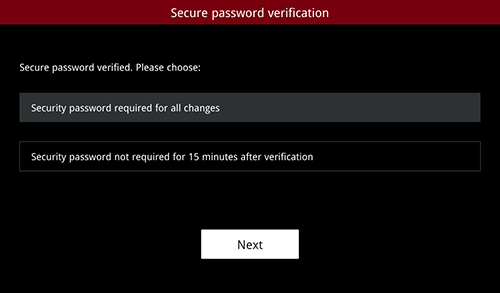
Security Password Verification 2
(2) SSH Settings
After enabling “SSH Settings”, you will need to set the SSH password which allows secure access to the server.
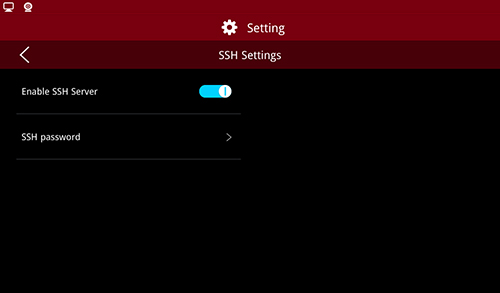
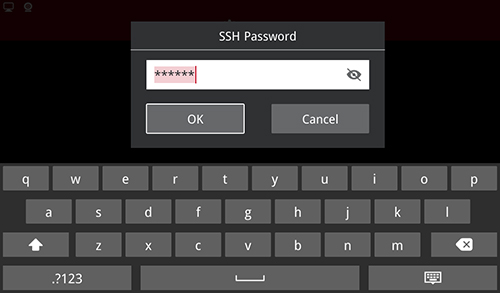
Enter SSH Password
Note: You will need to input Security Password to enable SSH settings.
(3) Screen Lock
Enable “Screen Lock” and set the lock time as required, by default, is 5 minutes.
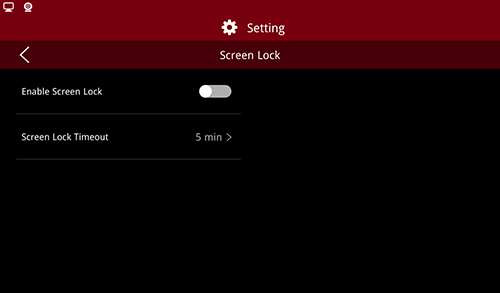
Screen Lock
Note: The lock screen password can be empty. You need to enter a security password before opening /closing the lock screen function.
(4) Collect Print Statistics and Display in Dashboard
Under this function, the print information will be recorded. The print information can be viewed at the print interface.
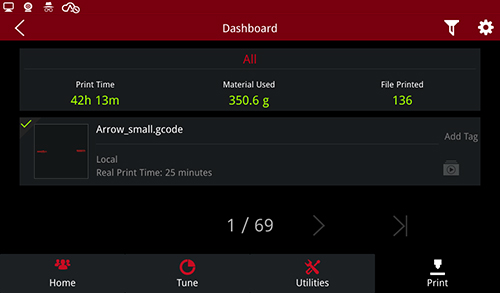
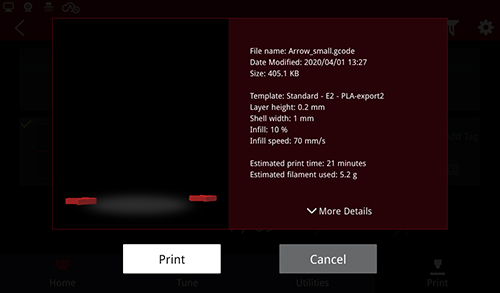
Print Information
(5) Enable Exporting Local Files to External Storage
For this function, local print files can be exported to external storage such as U disk.
Enable this function:
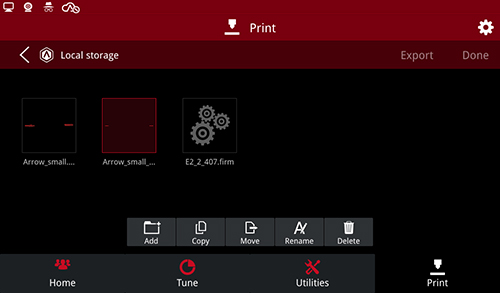
Enable Exporting Local Files to External Storage
Turn off this Function:
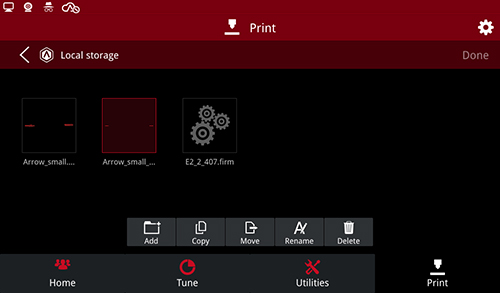
Disable Exporting Local Files to External Storage
(6) Export Credential File
This function can enable you to export credential files and send them to Raise3D after-sales personnel for modifying printer model, serial number and other key information.
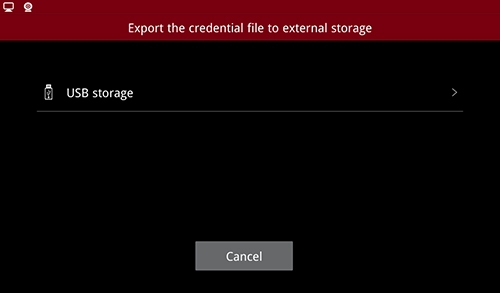
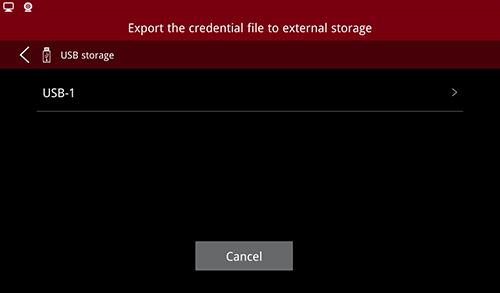
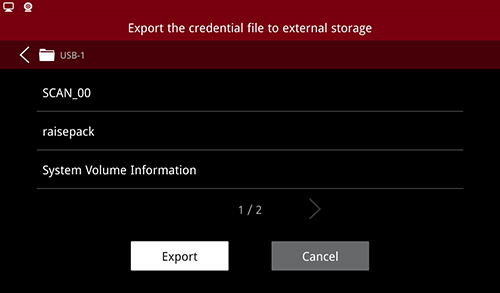
Export Credential File
(7) Allow Remote Access without Password
In this function, you do not need a password to connect the printer remotely. If this function is disabled, you need a password when connecting this printer.
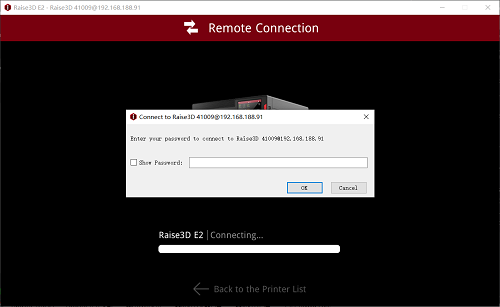
Allow Remote Access with Password
(8) Allow Viewing Saved WLAN Password
For this function, the password of the connected WLAN is visible.
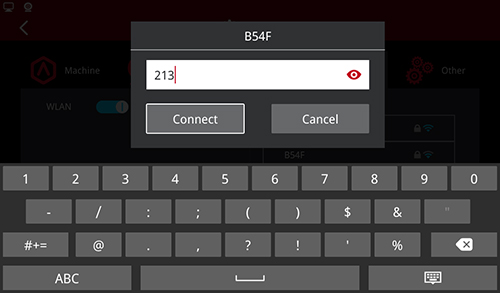
Check WLAN Password
(9) Incognito Mode
After the Incognito Mode is enabled:
a. A new icon will be displayed in the upper left corner
b. All relevant information of the print task will be deleted when print is finished. If the print is local, then the local file will be deleted and Dashboard will not record the print task.
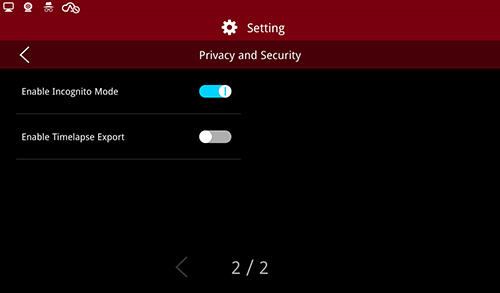
Enable Incognito Mode
(10) Export function for Timelapse files in dashboard
In this function, you can export the Timelapse photos to external storage such as a U disk. This function is disabled by default.
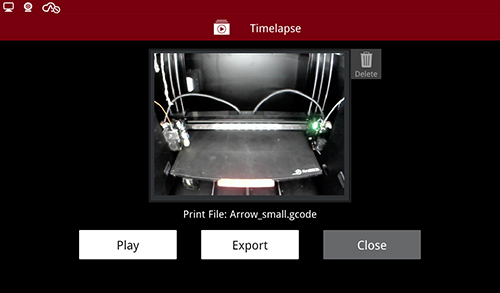
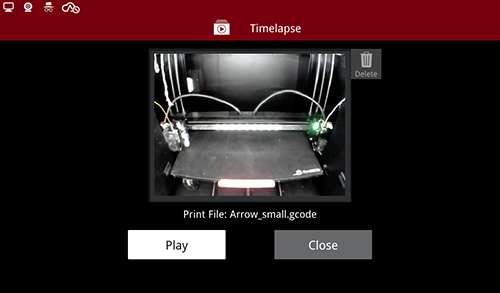
Turn on and off Timelapse Photos Export
-END-
