
There are 2 types of updates, Touch screen update and motion controller board update.
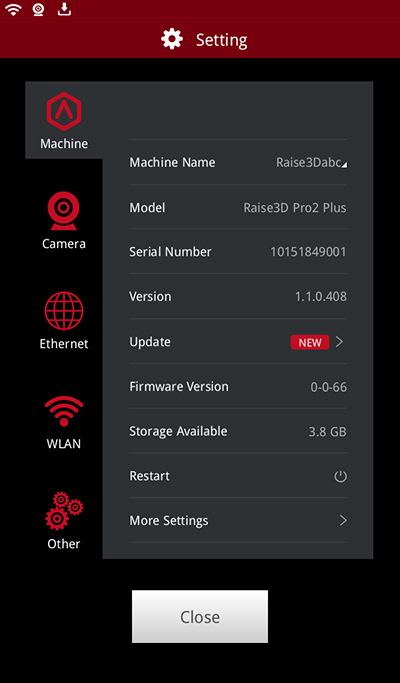
Enable this feature under "Setting > Machine > Update", and select "Check for update automatically". When enabled, the printer will check if there are any new versions available while it is connected to the Internet. Notifications will be shown at the top of the user interface as seen below.
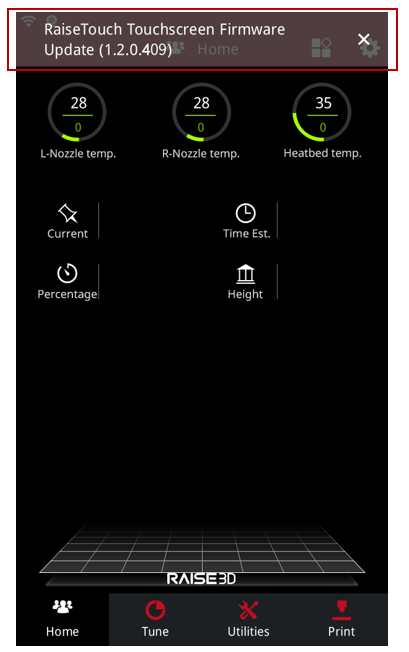
Press the notification window to read more information about the update.
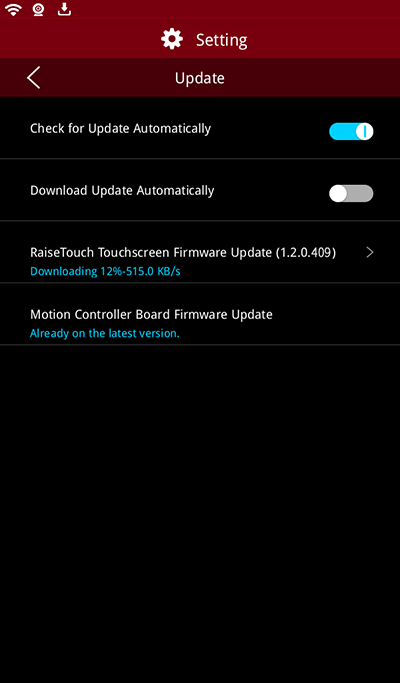
Additional settings can be managed under "Setting > Machine > Update".
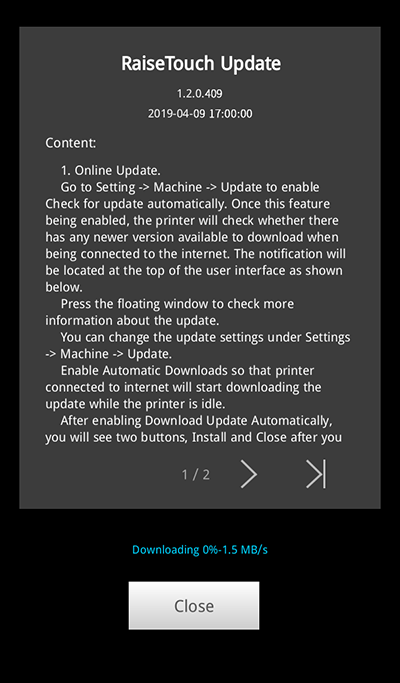
Enable "Download Update Automatically" will download the latest updates automatically while the printer is idle and connected to the internet.
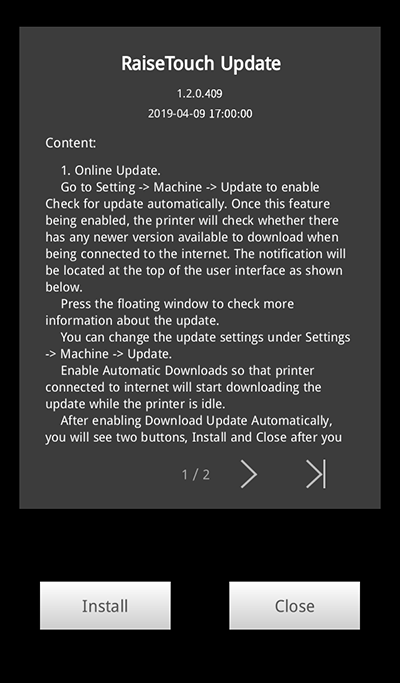
After "Download Update Automatically" has been enabled, a new window will appear with the update information. Select "Install" to install, or "Close" to exit the installation and update at a later time.
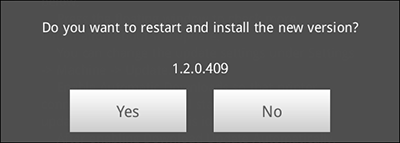
If you selected "Exit", open "Setting > Machine > Update to install the downloaded version manually.
If "Download Update Automatically" is disabled, the latest window will display 3 buttons.
"Update" will download the latest version and will prompt you if you would like to install once the download is completed.
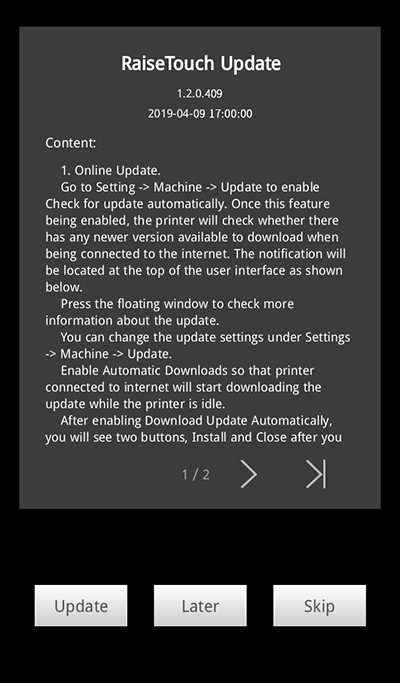
"Later" will dismiss the notification for several hours.
"Skip" will skip the current version and will no longer prompt notifications for this version.
Note: If the download keeps failing, please go http://help.raise3d.com for more help.
-END-