

1. Run the ideaMaker installer and select your language preference.
Note: If your computer already has ideaMaker installed, you need to click Yes to uninstall it as shown in Figure 1.
Before installing, it is important that any instance of ideaMaker is closed and not running in the background. If not, ideaMaker will pop up an installation error as shown in Figure 2. You will need to close ideaMaker, and then re-install it. The ideaMaker version 3.3 or later will show the reason for installation error.
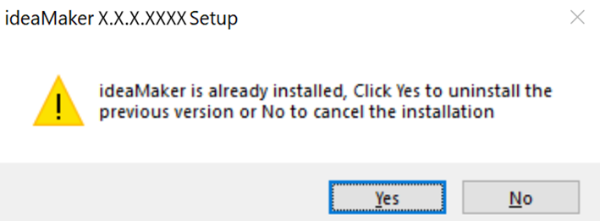
Figure 1: Uninstall the previous ideaMaker version.
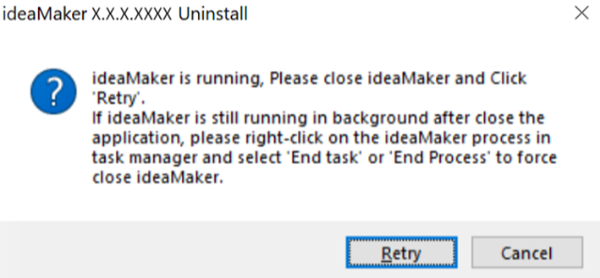
Figure 2: Close ideaMaker if it is running in the background.
Click Next to move on to the next menu. If you are using an older version of ideaMaker or reinstalling ideaMaker, you will need to close all open ideaMaker processes, so the installation can be completed without error. Please check your task manager to make sure that there is no ideaMaker process active before installation.
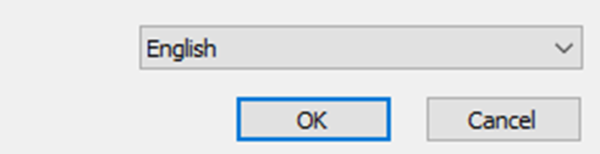
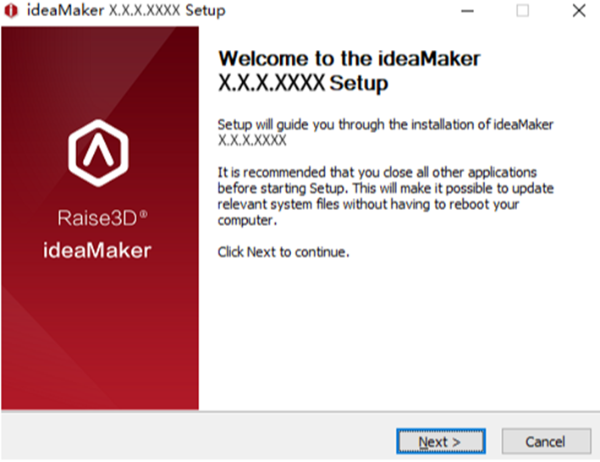
Figure 3: Select a language for installing ideaMaker.
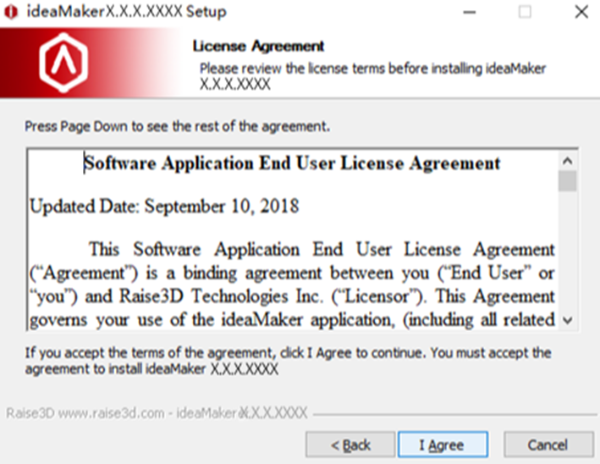
Figure 4: License Agreement.
2. Select a path to install ideaMaker and then click Next to move on to the next menu.
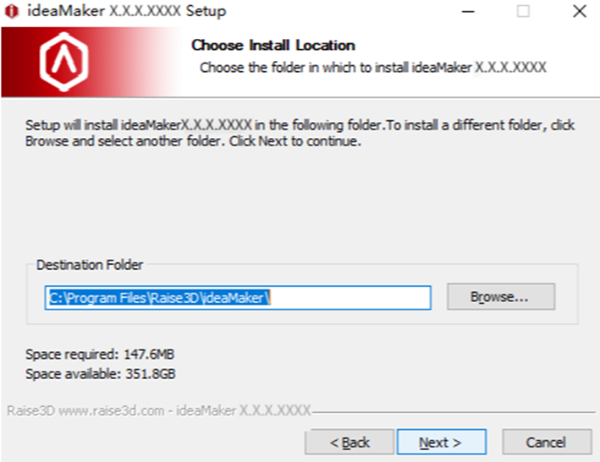
Figure 5: Select a path to install your ideaMaker.
3. Follow the instructions and click on Install. Microsoft Visual C++ 2008 SP1 Redistributable is automatically checked by the installation software. If you have that installed on your computer already, you don’t need to check it again.
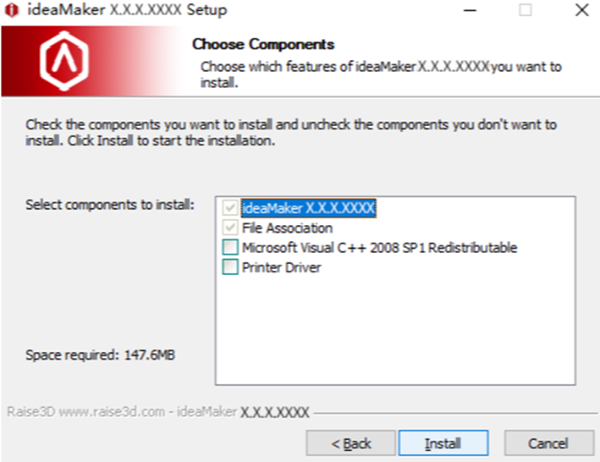
Figure 6: Check Microsoft Visual C++ 2008 SP1 Redistributable (if it is not already installed).
4. After the installation is completed, click Next.
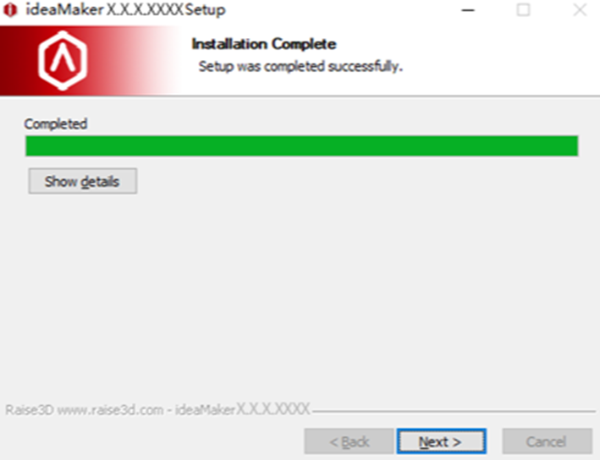
Figure 7: Click Next to complete the installation.
5. Click Finish to complete the installation.
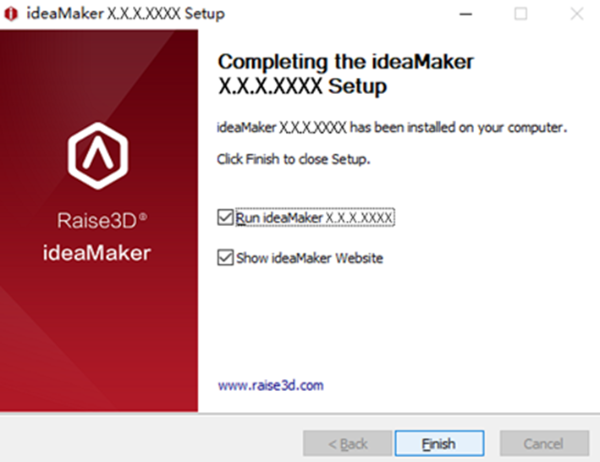
Figure 8: Complete the installation.
6. After installation is complete, select your desired theme when opening ideaMaker for the first time.
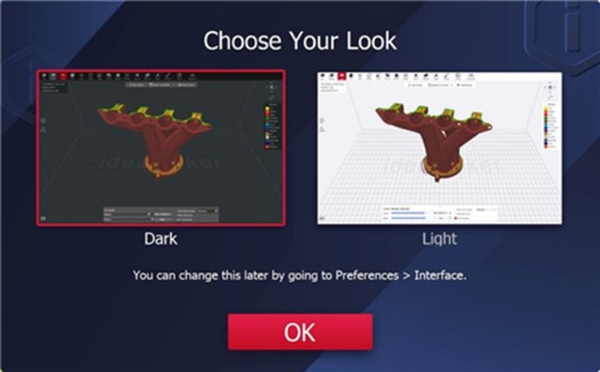
Figure 9: Select theme.
Note: You can change the theme in Edit > Preferences > Interface > Color Theme.
The following are common installation errors for your reference:
1. The installation package was not fully downloaded. You can try to re-download the installation packaging.
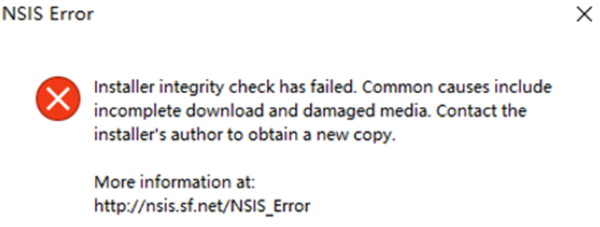
Figure 10: The installation package was not fully downloaded.
2. Error opening file for writing. If you encounter this error during installation, try to close ideaMaker running in background via task manager, then click Retry to install again.
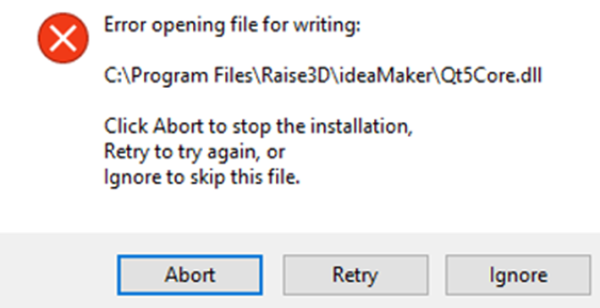
Figure 11: Close ideaMaker running in background.
