

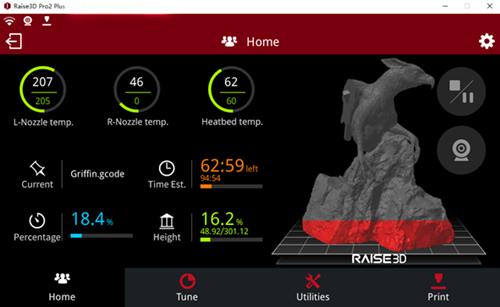
Figure 1: Home.

Figure 2: Camera Monitoring for Raise3D N&Pro2 Series Printer.
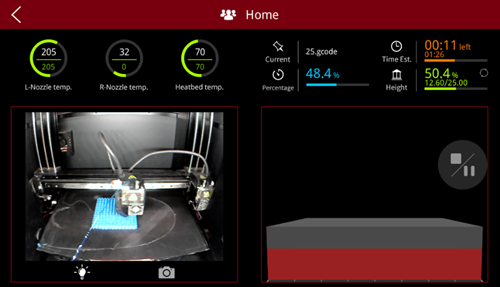
Figure 3: Camera Monitoring for Raise3D E2 Printer.
L-Nozzle temp: the temperature of the left nozzle. Upper value is current temperature. Lower value is target temperature.
R-Nozzle temp: the temperature of the right nozzle. Upper value is current temperature. Lower value is target temperature.
Heated bed temperature: the temperature of the heating bed. Upper value is current temperature. Lower Value is target temperature.
Current: the name of the printing model.
Time Est.: the total time and the remaining time of the printing model. The bigger one refers to the remaining time. The smaller one shown below refers to the total time in Figure 2. Click remaining time, it will show completion time.
Percentage: the percentage of the model that has been completed.
Height: the height of the completed model as Figure 3. Click the values then you can check the layer information, the current layer and how many layers in total.
 : pause or stop printing task.
 : Press camera button to take photos and save to local disk.
The ideaMaker version 3.4 or later and RaiseTouch version 1.2 or later will show the reason for pausing printing task.
Note:
1. There is a small bulb button in the left of the camera button, you can choose open or close LED lights before take photos.
2. This function only works for Raise3D E2 printer.
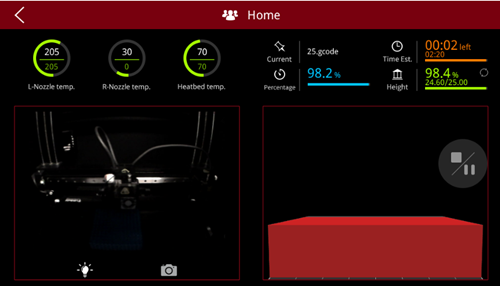
Figure 4: Turn Off the LED.
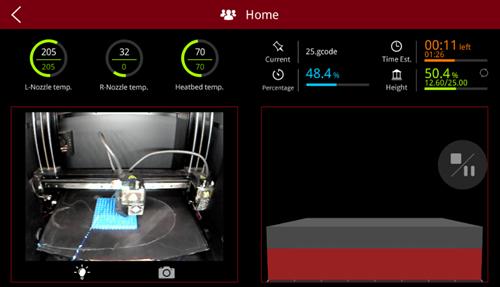
Figure 5: Turn On the LED.
Note: If there is no filament in the active extruder, the touch screen will display "The current task has been paused by filament monitor" as Figure 6.
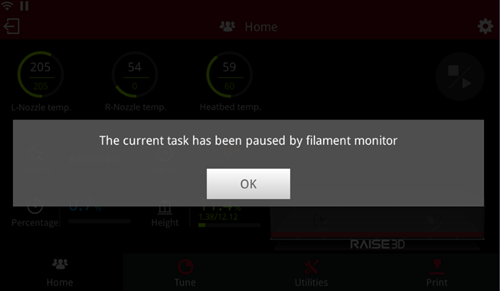
Figure 6: Task paused by filament run-out sensor.
Status Bar:
 : WIFI connection status.
 : Ethernet connection status.
 : Incognito icon, only shown when incognito mode is enabled.
 : Camera icon, only shown when camera is enabled.
 : Printing status icon, only shown when print starts.
 : Exit remote connection.
 : Settings icon, enter settings interface and you will see more settings, such as printer type, serial number and so on.
-END-
