

Select the Interface tab in the Preferences panel.
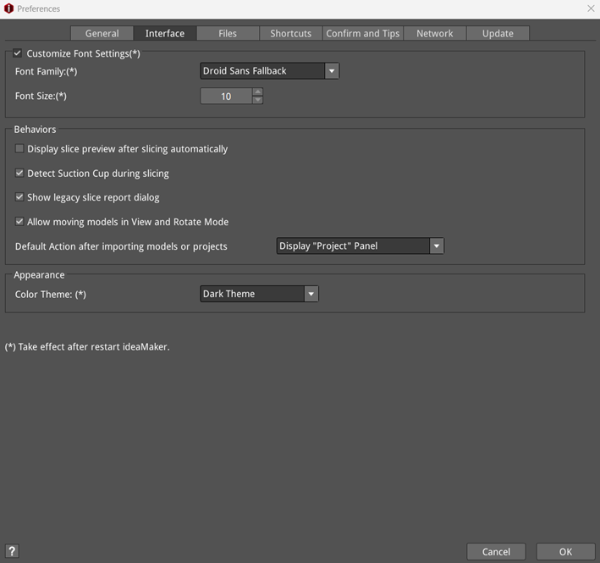
Figure 1: Preferences – Interface.
Customize Font Settings: With this function enabled, you can adjust the font settings of the interface in ideaMaker.
Font Family: Allows you to choose your desired font.
Font Size: Allows you to choose your desired font size.
Behaviors:
Display slice preview after slicing automatically: With this function enabled, ideaMaker will go directly to the preview interface instead of displaying Estimated Print Result.
Detect Suction Cup during slicing: With this function enabled, ideaMaker will detect suction cup when slicing. With this function disabled, ideaMaker will not detect suction cups any more during the operation of other functions, except during the printability check. (This function is only applicable to DLP printers.)
Show legacy slice report dialog: With this function enabled, the Estimated Print Result panel will be displayed together with the Slicing Result panel.
Allow moving models in View and Rotate Mode: With this function enabled, you can move the model directly under View or Rotate Mode.
Default Action after importing models or projects: Set the display information after the model is imported into ideaMaker.
Ø Display "Model Info" Panel: When you import models into ideaMaker, ideaMaker will pop up a dialog displaying Model Info, such as the Color.
Ø Display "Position" Panel: When you import models into ideaMaker, ideaMaker will pop up a dialog displaying Position.
Ø Display “Project” Panel: When you import models into ideaMaker, ideaMaker will pop up a dialog displaying Project.
Appearance: You can select different themes for ideaMaker main interface. For now, we only support Dark Theme and Light Theme.
Note: The above features with (*) in the Interface tab will take effect after restarting ideaMaker.
