

Select the Files tab in the Preferences panel.
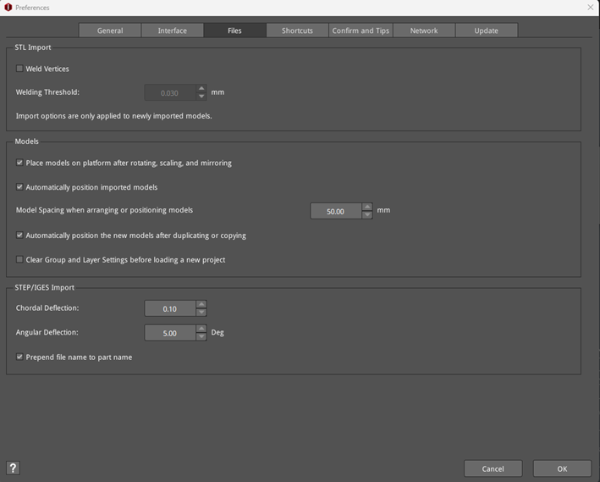
Figure 1: Preferences – Files.
STL Import:
Weld Vertices: Enable the function of merging vertices that are close to each other. There can be missing triangle face information in the STL files, so some specific models can enable this function to avoid generating a non-manifold structure.
Welding Threshold: If the value of nearby vertices is smaller than the defined value, the value will be merged.
Models:
Place models on platform after rotating, scaling, and mirroring: With this function enabled, the model will be placed on the build plate after being rotated, scaled and mirrored.
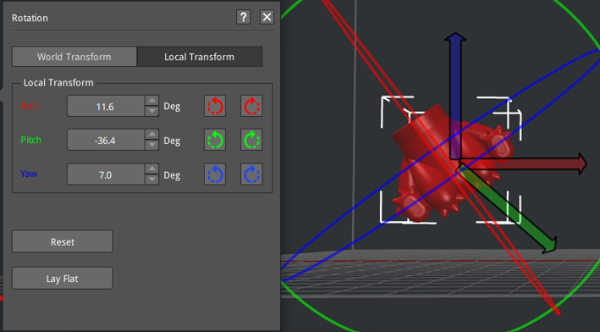
Figure 2: With this function disabled, the model is floating in mid-air after being rotated.
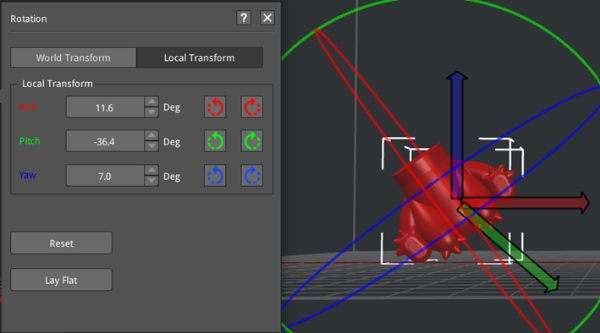
Figure 3: With this function enabled, the model is placed on the platform after being rotated.
Automatically position imported models: With this function enabled, models will be placed in the center of the build plate automatically.
Model Spacing when arranging or positioning models: Define the distance between models when using Arrange All Models or Duplicate function to arrange models.
For example, import four models into ideaMaker as shown in Figure 4. Set Model Spacing when arranging or positioning models to 100mm. Then select all models, select Move from the tool bar, click Arrange All Models in the Position panel, and models will be placed on the build plate as Figure 5.
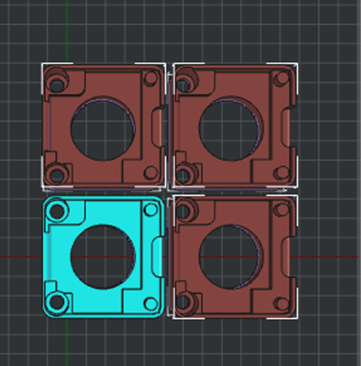
Figure 4: Import models.
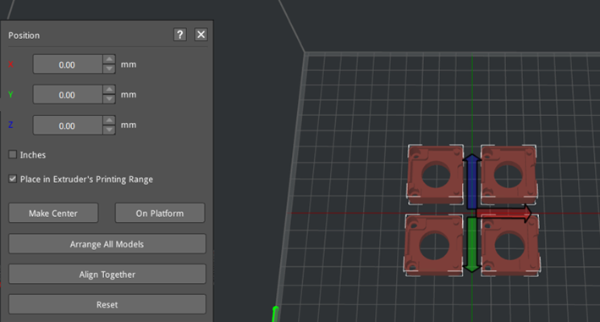
Figure 5: Models placed on the build plate with the set spacing.
Automatically position the new models after duplicating or copying: Automatically positions and places the duplicated or copied models on the build platform.
Clear Group and Layer Settings before loading a new project: With this function enabled, ideaMaker will delete the group and layer settings automatically before importing a new project.
