

Select the Confirm and Tips tab in the Preferences panel.
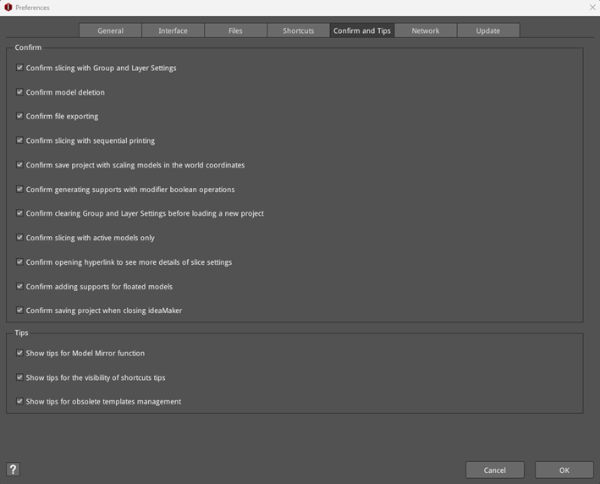
Figure 1: Preferences – Confirm and Tips.
Confirm:
Confirm slicing with Group and Layer Settings: With this function enabled, ideaMaker will pop-up a dialog to confirm whether to continue slicing with overriding parameters in Group and Layer Settings, as shown in Figure 2.
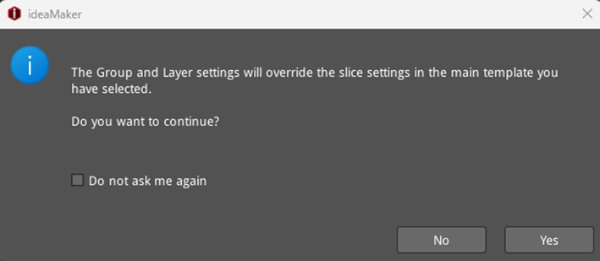
Figure 2: Confirm whether to continue slicing with overriding parameters in Group and Layer Settings.
Confirm model deletion: With this function enabled, a dialog box will pop up in ideaMaker to confirm whether to delete the model you selected as shown in Figure 3。
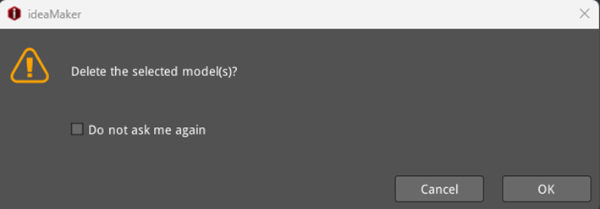
Figure 3: Confirm whether or not to delete the selected model.
Confirm file exporting: With this function enabled, a dialog box will pop up in ideaMaker to prompt you that the sliced file has been exported successfully, as shown in Figure 4.

Figure 4: Confirm the exporting result for the selected model.
Confirm slicing with sequential printing: With this function enabled, ideaMaker will automatically pop-up a warning dialog box, as shown in Figure 5.
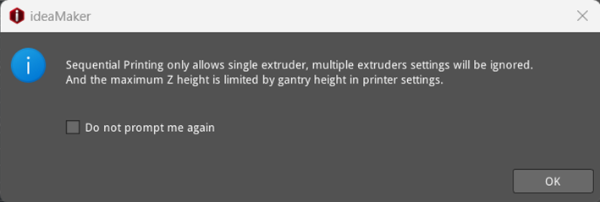
Figure 5: Confirm slicing with sequential printing.
Confirm save project with scaling models in the world coordinates: With this function enabled, a dialog box will pop up in ideaMaker to confirm whether or not to save the model including the current scale information.
Confirm generating supports with modifier boolean operations: With this function enabled, a dialog box will pop up in ideaMaker to confirm whether or not to regenerate new supports for the results mesh Boolean operations by the modifiers.
Confirm clearing Group and Layer Settings before loading a new project: With this function enabled, a dialog box will pop up in ideaMaker to confirm whether or not to clear Group and Layer Settings before importing a new project.
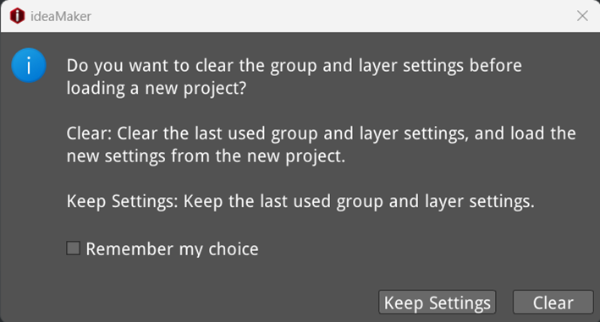
Figure 6: Confirm clearing Group and Layer Settings before loading a new project.
Confirm slicing with active models only: With this function enabled, a dialog box will pop up in ideaMaker to confirm whether or not to slice the active model only.
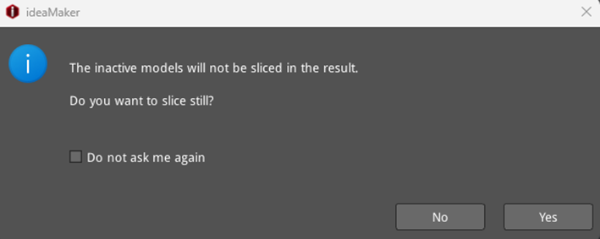
Figure 7: Confirm whether or not to slice the active model only.
Confirm opening hyperlink to see more details of slice settings: With this function enabled, a dialog box will pop up in ideaMaker to confirm whether or not to open the link to view more details of slice settings.
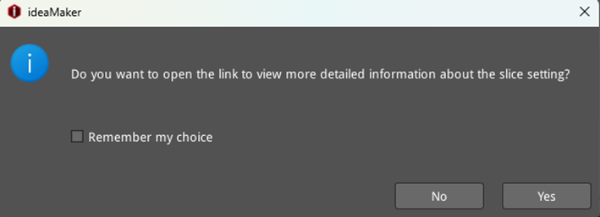
Figure 8: Confirm whether or not to open the link to view more details of slice settings.
Confirm adding supports for floated models: With this function enabled, a dialog box will pop up in ideaMaker to prompt adding supports to a model floating above the build plate before slicing.
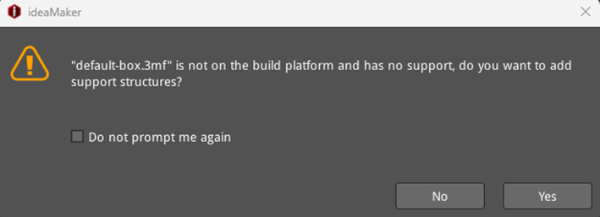
Figure 9: Confirm to add supports for floating models.
Confirm saving project when closing ideaMaker: With this function enabled, a dialog box will pop up in ideaMaker to confirm whether or not to save the project before closing ideaMaker.
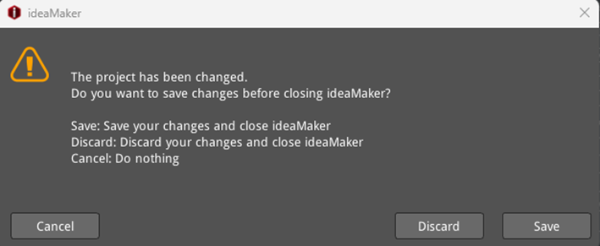
Figure10: Confirm whether or not to save the project before closing ideaMaker.
Tips:
Show tips for Model Mirror function: With this function enabled, a dialog box will pop up in ideaMaker to show tips for the model mirror function.
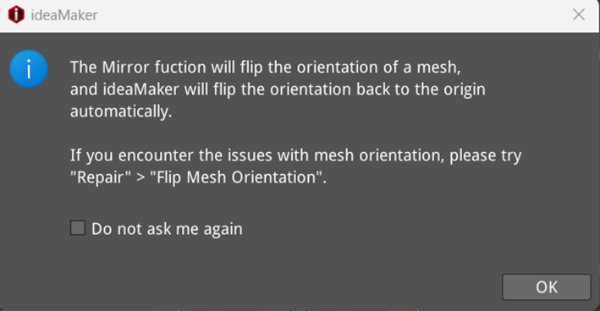
Figure 11: Show tips for the model Mirror function.
Show tips for the visibility of shortcuts tips: With this function enabled, a dialog box will pop up in ideaMaker to ask if the user wishes to be reminded of tips on the visibility of the shortcuts function.
Show tips for obsolete templates management: With this function enabled, a dialog box will pop up in ideaMaker to ask if the user wishes to be reminded of tips for obsolete templates management.
