

In the bottom left-hand corner of the main interface is the Printability panel, which displays information after checking the model, such as whether the model has exceeded the boundary, errors in the model itself, etc. It also displays information about the model, such as the model’s name, bounding box size, volume, number of faces, etc. Any error message is displayed in a red font, and the warning message is displayed in a yellow font.
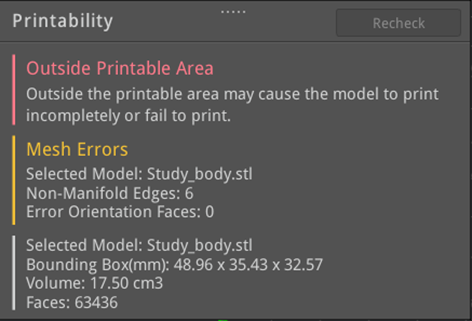
Figure 1: Printability panel.
Bounding Box(mm): The size of the model. During rotating model or scaling local transform, this page will show Local Bounding Box.
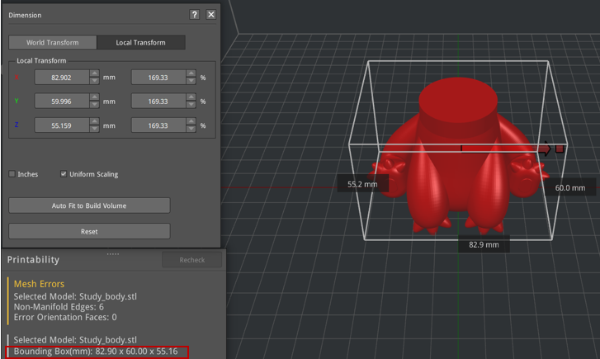
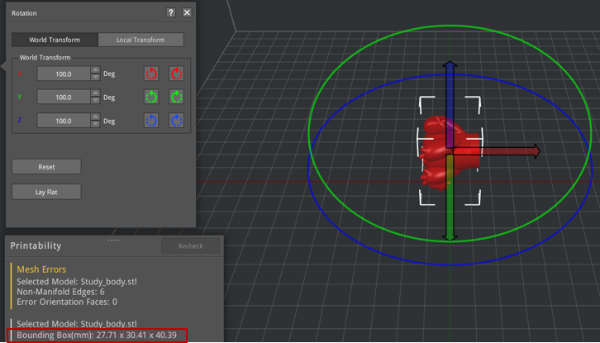
Figure 2: The bounding box will change with scaling or rotating.
Non-Manifold Edges: The number of non-manifold edges in the model. Generally, there are two types of non-manifold errors, one is an open object which means the model has holes or loose edges, another one is extra faces such as internal faces, overlapping faces etc.
Error Orientation Faces: The number of error orientation faces in the model. In geometry the orientation of an object such as a line, plane or rigid body is part of the description of how it is placed in the space it is residing. If your model shows it in green, you’ll need to flip mesh orientation.
If an error or warning message is displayed after printability detection, the model can be adjusted accordingly or repaired by clicking Repair in the tool bar. After the adjustment or repairing is complete, ideaMaker will check if the error or warning has been resolved automatically. If there is still a red error message, slicing cannot be performed.
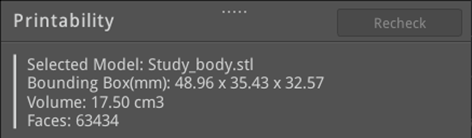
Figure 3: After adjusting or repairing the model, the red error and yellow warning messages have been resolved.
