

 : Connect the printer to your computer via the network.
1)Click the Connect button to open the Printer Connect panel.
When using remote connection for the first time, the Scanning list is empty. You need to click the icon  to add commonly used printers.
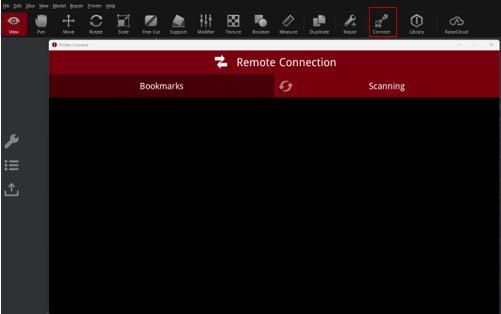
Figure 1: Open the Printer Connect panel.
2)After clicking  , ideaMaker will automatically scan for any printers that may be available for connection.
Click on the arrow (as shown in the red box below) to connect to this printer automatically. If there is an icon  before the printer model, it indicates that this printer needs a password for connection. Click on the star icon (as shown in the red circle below) to bookmark this printer and it can be shown in the list of Bookmarks.
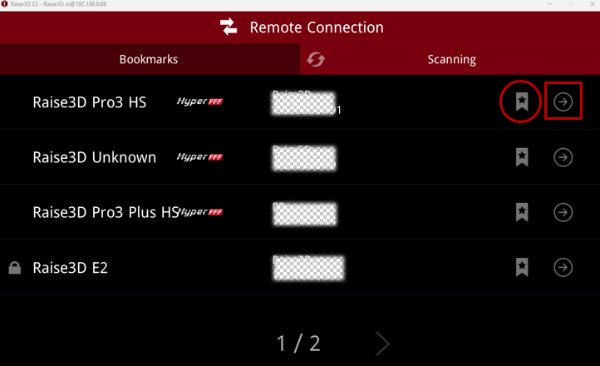
Figure 2: Automatically scan the available printers for connection.
3)If there is no printer available after scanning, click Bookmarks > + (as shown in the red box below) to manually add a printer to the list of Bookmarks.
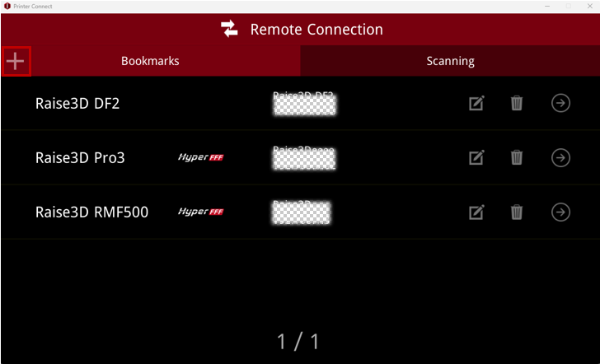
Figure 3: Manually add a printer to the list of Bookmarks.
4)Select the Printer Type, input the Printer Name, Serial Number and IP Address. Click OK, and then the printer will be manually added to the list of Bookmarks.
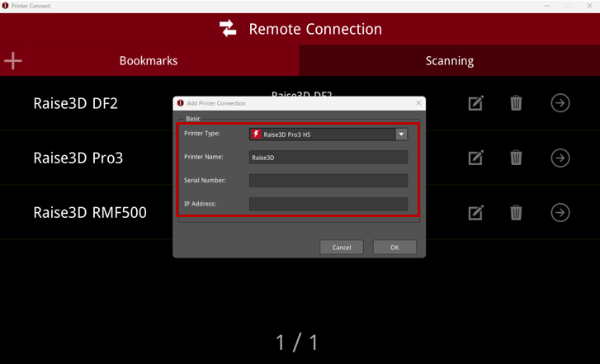
Figure 4: Input the printer serial number and IP address.
5)Enter the Home page of the printer for remote connection.
After connecting the printer successfully, enter the Home page of the printer to view its current status (L-Nozzle temp., R-Nozzle temp., Heatbed temp., Current, Time Est., Percentage, Height). Click the camera icon to visualize its current printing status inside the chamber.
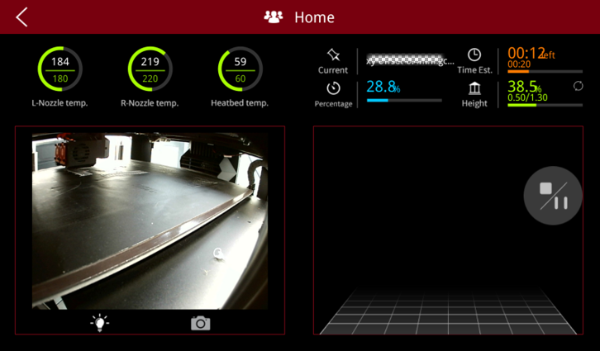
Figure 5: Enter the Home page of the printer to view its current status while remotely connected.
6)Start remote printing.
When the printer is in standby mode, enter the Home page of the printer via the remote connection. Click Print to choose a print file from the Local storage or USB storage, and then start printing.
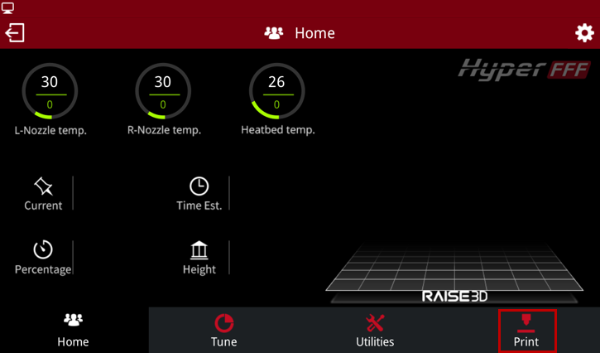
Figure 6: Start printing via the remote connection.
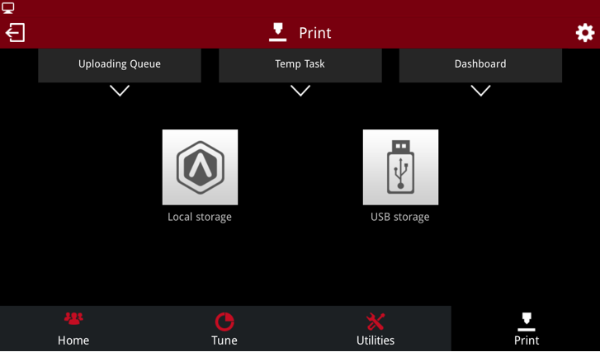
Figure 7: Choose a print file from the Local storage or USB storage.
