

 : A web-based 3D printing platform, through which you can remotely control, monitor and report your team's entire printing process. You can log into the platform via a PC or mobile phone and monitor your printing tasks anywhere.
(1) Users can log onto RaiseCloud with a RaiseCloud account to check account information, dashboard and other information.
You can click the RaiseCloud icon in the Tool bar to sign in with your RaiseCloud account.

Figure 1: RaiseCloud.
If you do not have a RaiseCloud account, click the Sign up button to get one.
If you already have a RaiseCloud account, enter your e-mail address and password, and then click the Sign In button to log in.
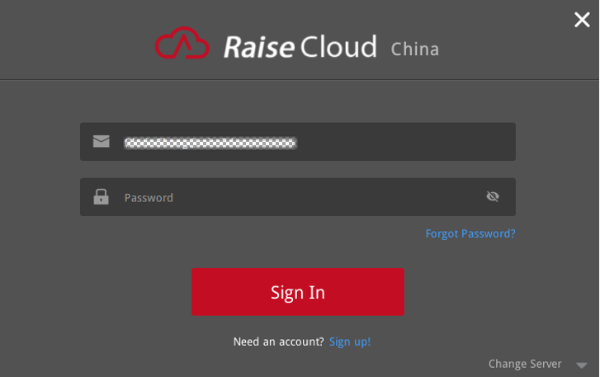
Figure2: Sign In or Sign Up.
After you log into your account, you can check the Storage, Uploading Queue, Dashboard and other information.
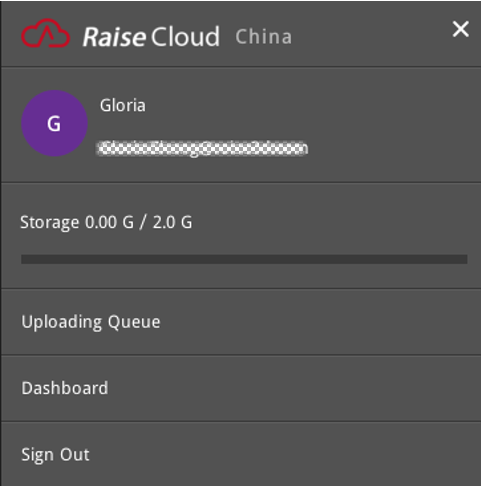
Figure 3: After logging into your account.
(2) GCode files in ideaMaker can be uploaded with one-click to RaiseCloud, where you can assign your print jobs to your printers.
Upload GCode files to RaiseCloud:
Option 1: You can click the Upload to RaiseCloud button in the instant operation bar to upload the sliced GCode file to RaiseCloud.
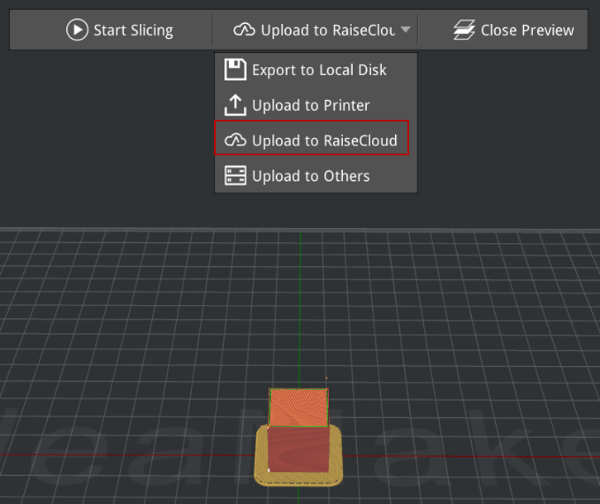
Figure 4: Upload the GCode files to RaiseCloud in the main interface.
Option 2: Click the Uploading Queue icon on the left side of the interface to upload the GCode file from the local disk to RaiseCloud by clicking the UPLOAD TO RAISECLOUD button.
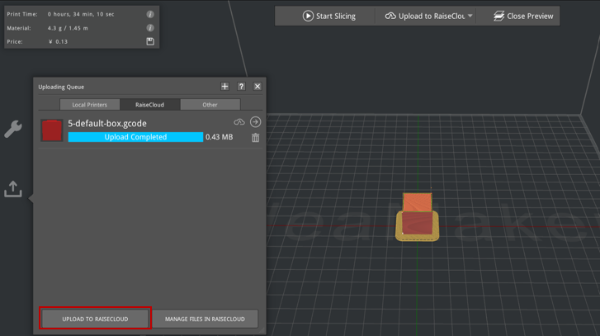
Figure 5: Upload the GCode file in Uploading Queue panel.
Manage uploaded GCode files by entering RaiseCloud website:
Option1: Click the button to navigate to the RaiseCloud webpage and start your printing task.
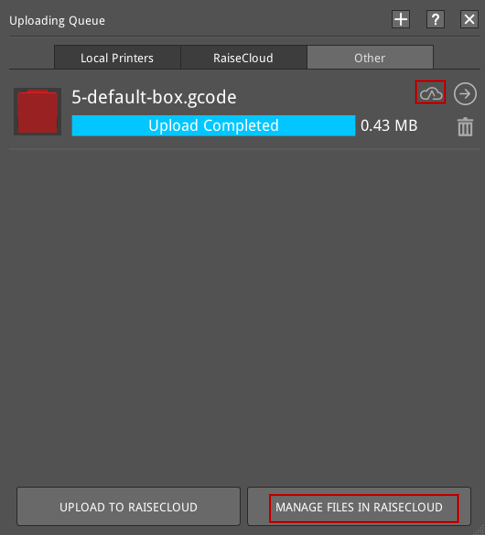
Figure 6: Enter RaiseCloud website.
If you have multiple printers, you can select them and click the Start Print Now button to start your printing task.
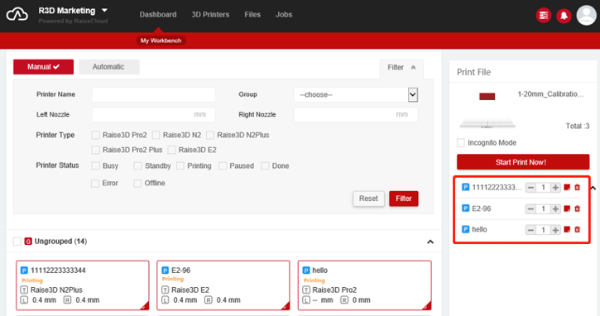
Figure 7: Choose printers.
If you only have one printer, simply click the Start Print Now button to start your printing task.
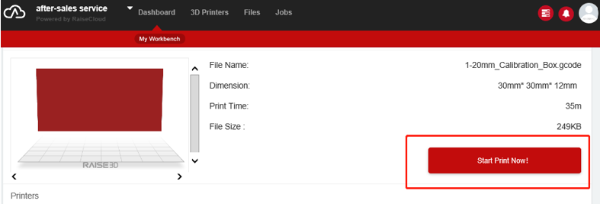
Figure 8: Start Print Now.
Click the  button to check more slice settings.
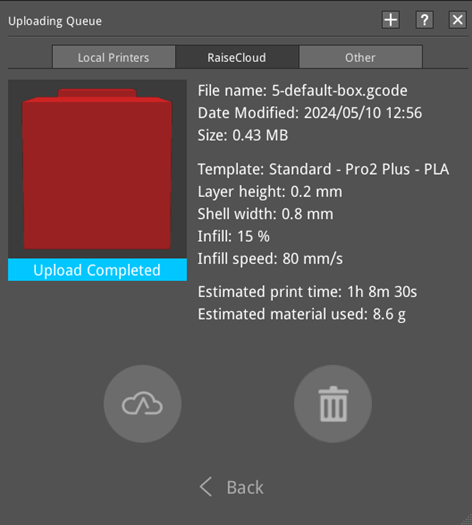
Figure 9: More Slice Settings.
Option 2: Click the MANAGE FILES IN RAISECLOUD button (as shown in the above Figure 6) to enter RaiseCloud webpage. You can print, view GCode files, download or delete GCode files on this webpage.
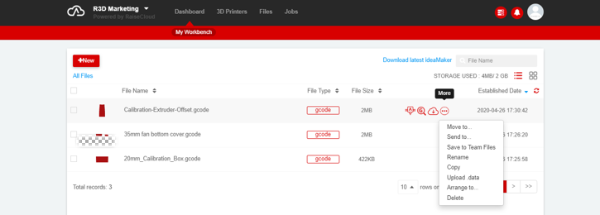
Figure 10: Manage files in RaiseCloud.
(3) RaiseCloud and ideaMaker can work together to create a seamless workflow.
You can slice the model with ideaMaker, then log onto RaiseCloud through ideaMaker and upload the GCode file to RaiseCloud. Click the MANAGE FILES IN RAISECLOUD button to enter RaiseCloud website, and click Print button to start printing. You can monitor the printing process in RaiseCloud. You can also pause, stop or resume printing tasks in RaiseCloud.
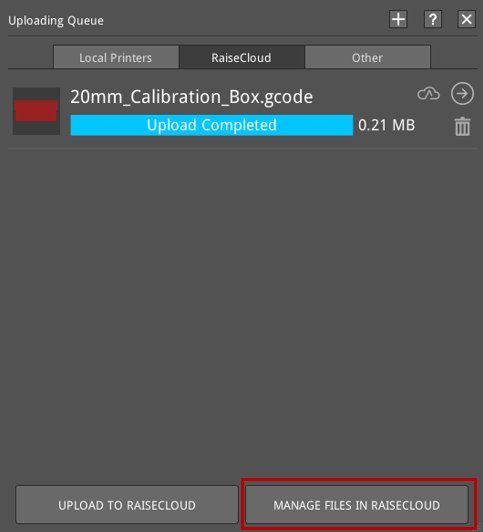
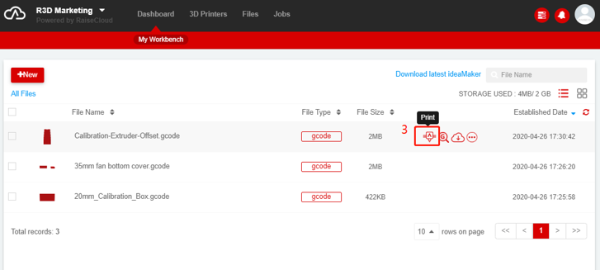
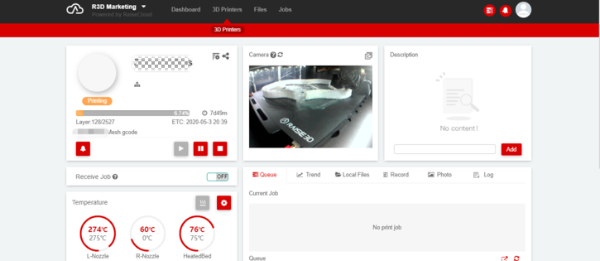
Figure 11: Start printing.