

 : Modify the settings for parts of the model or choose one model as a support base for other models.
Click Add Modifier or + button to add another model (model 1) as shown in Figure 1.
Click - button to delete selected modifiers.
Click Edit icon  to edit modifiers’ name.
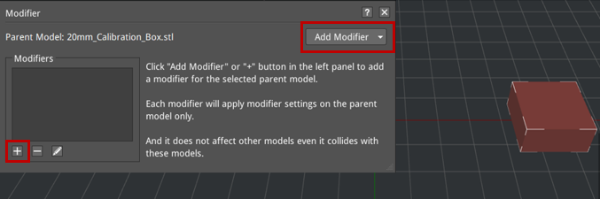
Figure 1: Add Modifier.
Type:
(1) Change settings of overlap with parent model
Change settings of overlap with parent model: Refers to ideaMaker ability to adjust the slice settings of overlapped parts. Click the + icon to add slice settings, like layer, infill and support, as shown in Figure 2. Click the - icon to delete selected settings. For example, we set the infill density to 50%, as shown in Figure 3. Then slice the model, you will see it as shown in Figure 4.
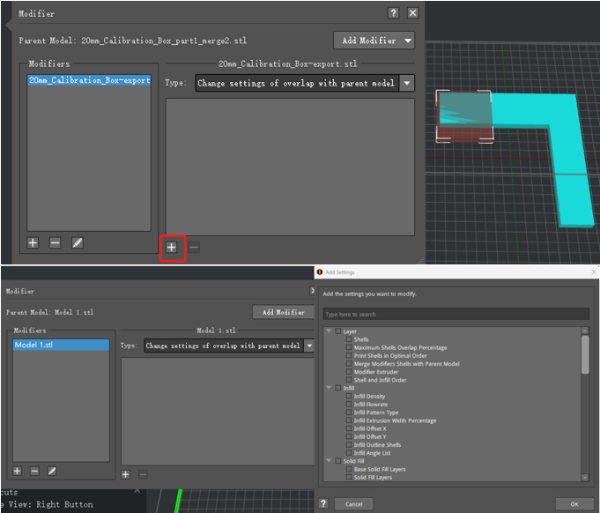
Figure 2: Add settings you want to modify for the overlapped parts.
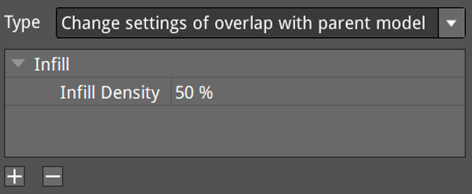
Figure 3: Adjust the Infill Density to 50%.
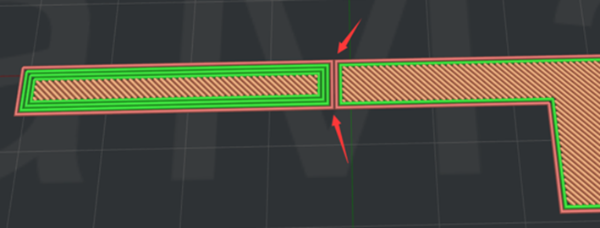
Figure 4: Enable “Change settings of overlap with parent model”.
(2) Support Structures
Support Structures: ideaMaker will print the modifier as the support structures of the parent model. Click + icon to add slice settings as shown in Figure 6. For example, we set support ratio to 100%. Then slice model as shown in Figure 7.
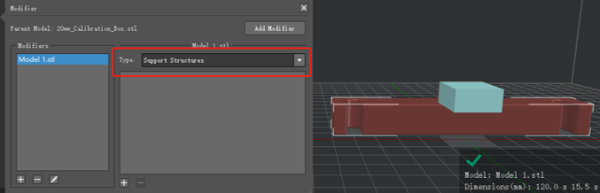
Figure 5: Support Structures.
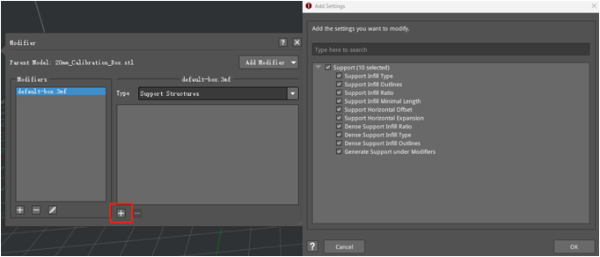
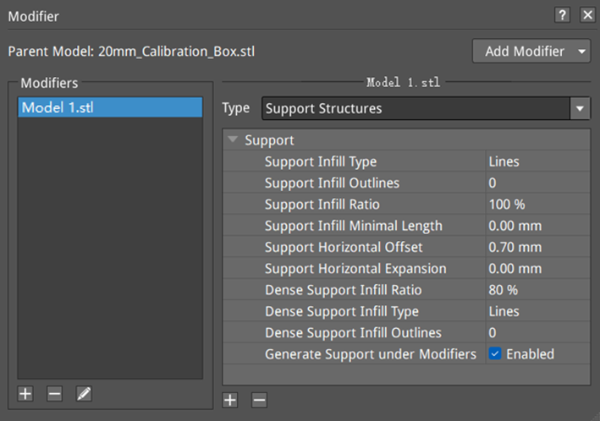
Figure 6: Edit settings and enable “Generate Support under Modifiers”.
Generate Support under Modifiers: With this function enabled, ideaMaker will generate supports in the modifiers automatically.
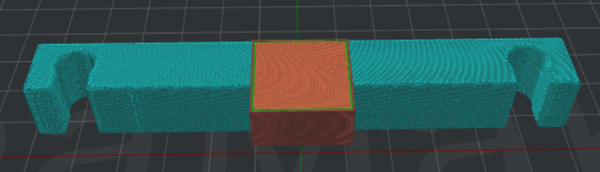
Figure7 : Preview the model.
(3) Support Blocker (Don’t Support at overlap with parent model)
Support Blocker (Don’t Support at overlap with parent model): Means that the area where the parent model overlaps with the modifiers will not generate supports, as shown in Figure 8.
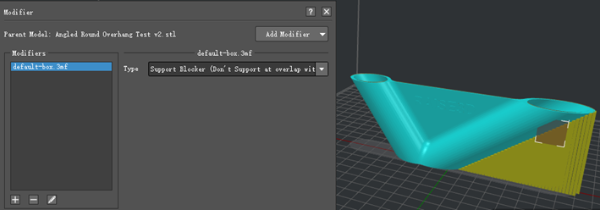
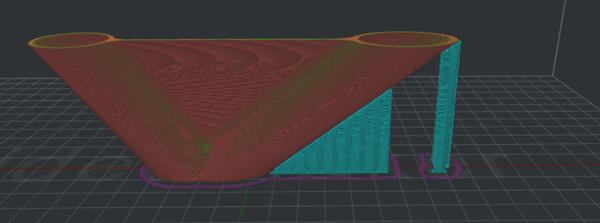
Figure 8: Enable “Don’t Support at overlap with parent model”.
(4) Texture Blocker (No texture at overlap with parent model)
Texture Blocker (No texture at overlap with parent model): Means that the area where the parent model overlaps with the modifiers will not generate texture, as shown in Figure 9.
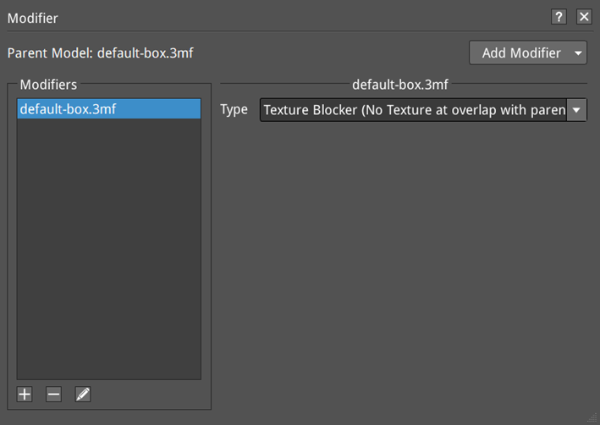
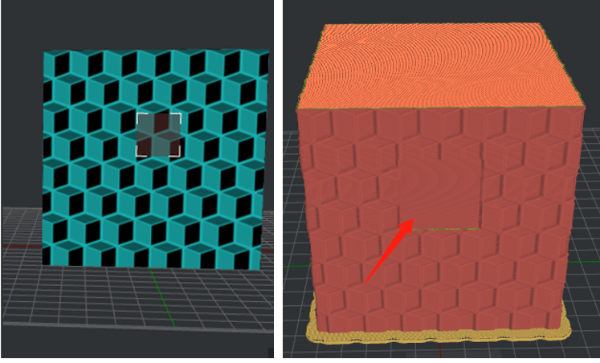
Figure 9: No texture will be generated at the part that overlaps with the parent model.
(5) Remove the overlap regions (experimental)
Remove the overlap regions: means that the area where the parent model overlaps with the modifiers will not be generated, as shown in Figure 10.
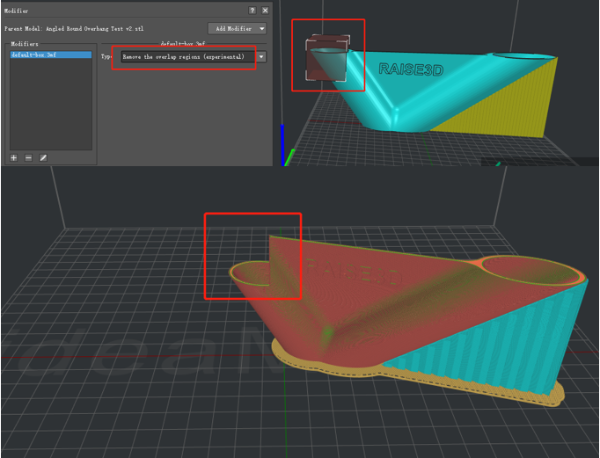
Figure 10: Enable ”Remove the overlap regions”.
(6) Keep the overlap regions only (experimental)
Keep the overlap regions only: means that only the area of the parent model that overlaps with the modifiers is generated, as shown in Figure 11.
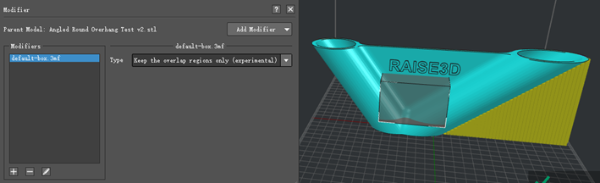
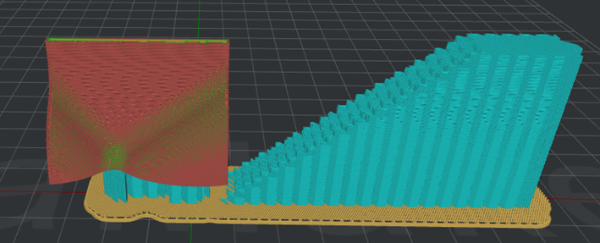
Figure 11: Enable ”Keep the overlap regions only”.
Note: Recreating supports after Modifier Boolean Operation will affect the support structures. See Chapter 4.2.6 for details about recreated supports after Modifier Boolean Operation.
