

 : Textures will be added to overlay the selected model.
Texture means you can add textures to overlay the selected model. There are three options:
Normal means no texture will be added to the selected model.
Embedded Texture means that the model already has textures.
Custom Texture means that the model has no texture, and you can add customized texture to the model.
Note:
1. If you cut the model after overlaying texture, the texture mapping will be changed.
2. The Texture function will be invalid when the Cross Section function is enabled.
3. It can also be used for the belt printer.
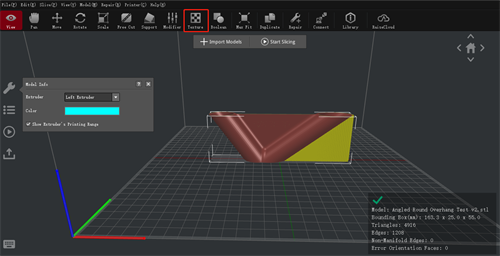
Figure 1: Texture tab.
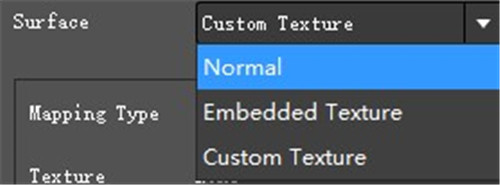
Figure 2: Three options.
Mapping Type refers to models’ shape. There are three options, Cylindrical, Spherical and Cube and Cube (No Mirroring).
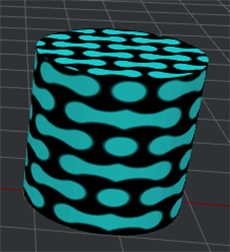
Figure 3: Cylindrical.

Figure 4: Spherical.
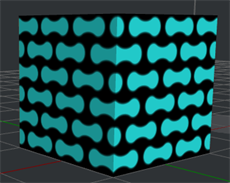
Figure 5: Cube.
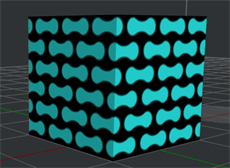
Figure 6: Cube (No Mirroring).
Cylindrical, Spherical, Cube and Cube (No Mirroring).
There are two options to import texture.
Option 1: Click “+” to import texture.
Option 2: Click “More” to import texture.
Import from local Disk refers to importing a texture (.jpg, .png and .texture) from your computer or local disk.
Import from ideaMaker Library refers to importing a texture (.jpg, .png and .texture) from ideaMaker Library.
Export refers to exporting the texture from ideaMaker to your computer.
Share to ideaMaker Library refers to sharing the texture from ideaMaker to ideaMaker Library.
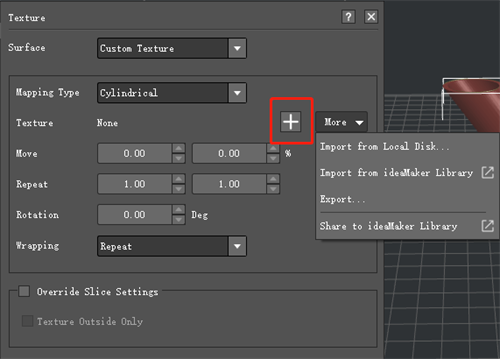
Figure 7: How to Import Texture.
Move removes the texture on the X-axis and the Z-axis. It is expressed as a percentage of the texture’s length and height.
For example, if the texture’s length is 100mm, set Move X to be 50% and the texture will move 50mm to the left.
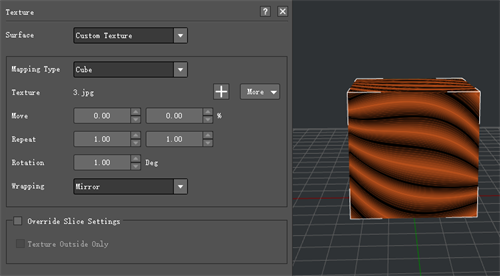
Figure 8: The Original Texture.
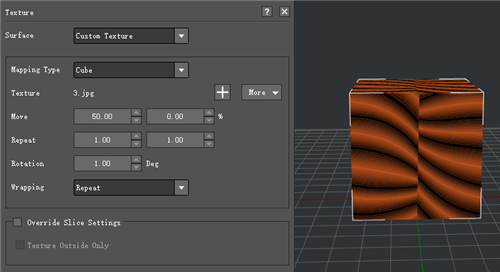
Figure 9: Move the Texture to 50% on the X-axis.
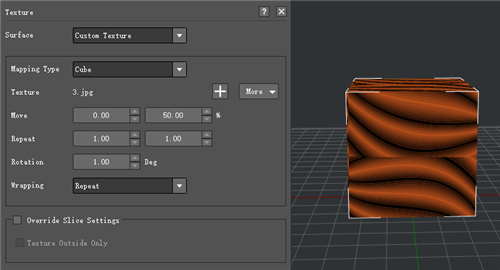
Figure 10: Move the Texture to 50% on the Z-axis.
Repeat refers to the repeated count of the selected texture on the X-axis and the Z-axis.
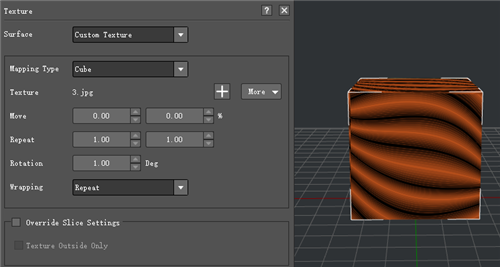
Figure 11: The Original Texture.
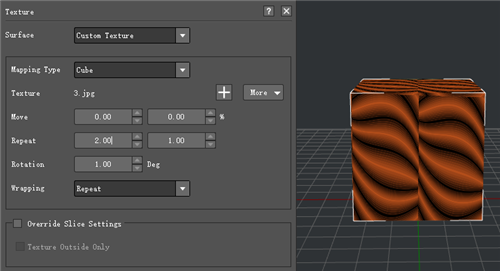
Figure 12: Repeat the Selected Texture Two Times on the X-axis.
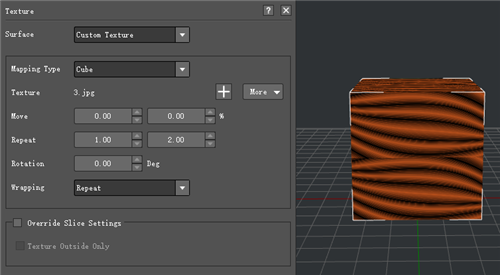
Figure 13: Repeat the selected texture two times on the Z-axis.
Rotation refers to the rotation of the selected texture on the Y-axis.
Warping
Repeat means the texture will repeat array in a distinct order shown in Figure 14.
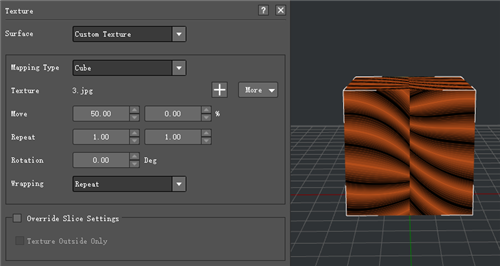
Figure 14: Repeat.
Mirror means the texture will be arrayed repeatedly, but the adjacent textures are mirrored as Figure 15.
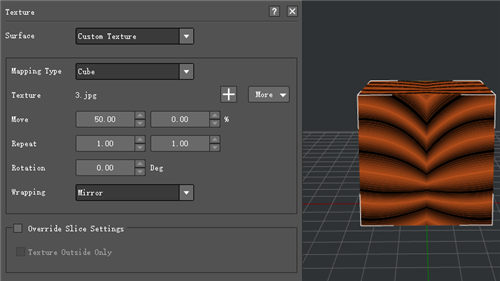
Figure 15: Mirror.
Clamp to Edge means that if the model is bigger than texture’s size, the parts outside the range will be set to the texture’s edge color.
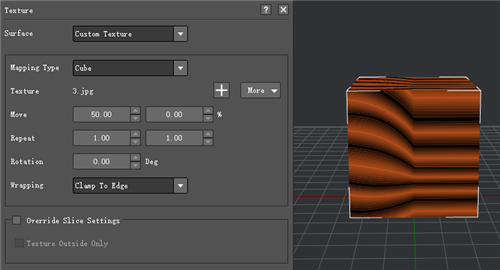
Figure 16: Clamp to edge.
Clamp to Border means that if the model is bigger than the texture’s size, the parts outside the range will be set to the fixed border color.
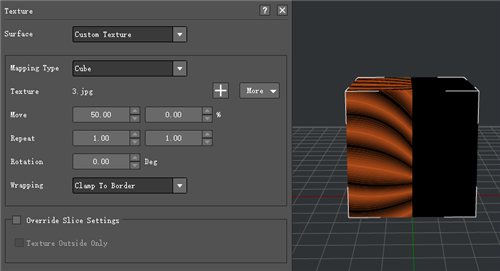
Figure 17: Clamp to Border.
Override Slice Settings with this function enabled, the following settings will be used to override settings in slicing templates when Texture is enabled.
Texture Outside Only with this function enabled, the texture will only be overlay on the outside of the model and the holes will not have the texture applied.
-END-
