

In the Prepare to Slice panel, click the fourth More from top to bottom. Click Duplicate to open the Duplicate Template panel.
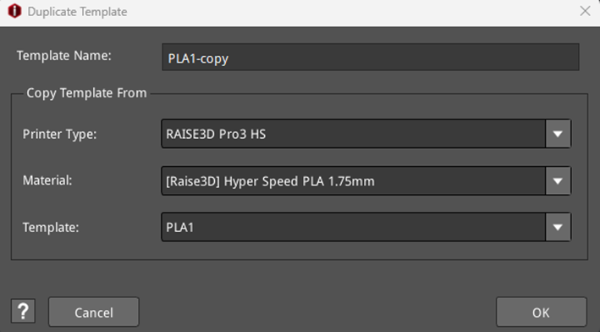
Figure 1: The Duplicate Template panel.
Template Name: Refers to the new template’s name. ideaMaker will automatically name the new template “copied template’s name-copy”. You can also rename it.
Copy Template From: Refers to the current template from which this new template will be copied.
Printer Type: Refers to the printer type of the copied template.
Material: Refers to the filament type of the copied template.
Template: Refers to the name of the copied template.
For example, copy a new template and name it PLA1-copy, as shown in Figure 1. Click OK and the Duplicate Template panel will display the Basic and General settings of the new template, as shown in Figure 2. After making some settings according to the introduction to General settings in Chapter 5.1.1, click OK to complete duplicating the template, as shown in Figure 3.
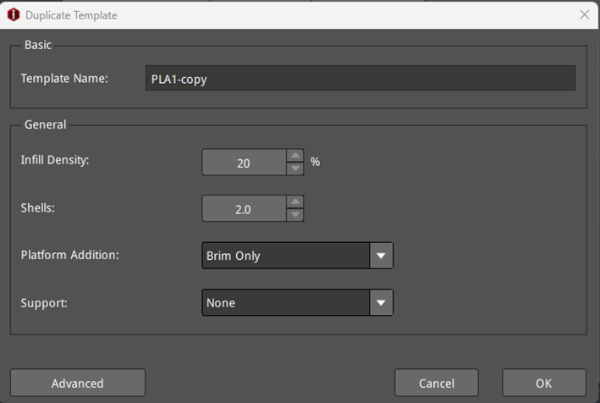
Figure 2: The Duplicate Template panel containing the Basic and General settings.
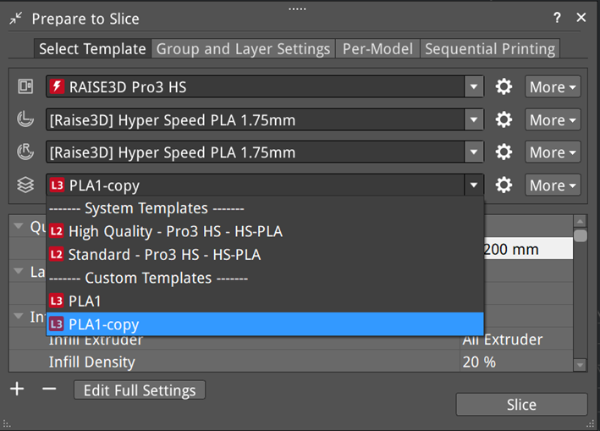
Figure 3: Complete duplicating a template.
