

(1) Other
Force Retraction On Layer Change: The retraction will automatically be triggered when the nozzle moves to the next layer.
Force Retraction Before Travelling to Outer Shell: The retraction will automatically be triggered when the nozzle moves to start printing outer shell.
Avoid Retraction at Start: With this function enabled, the retraction will not be triggered when the extruder finishes the Start G-Code and travels to the models.
Avoid Retraction Inside Models: Disables retraction when printing the inner structures of the model.
Enable Retraction at Bottom and Top of Models: With this function enabled, the retraction will be triggered at model’s top and bottom layers even if the retraction is disabled inside models.
Bottom Layers: The number of bottom solid layers in which retraction will be enabled.
Top Layers: The number of top solid layers in which retraction will be enabled.
(2) Avoid Traveling Through Holes: With this function enabled, the printhead will bypass the hole part to prevent stringing on the inside of holes.
Enable Maximum Travel Path Length: With this function enabled, the extruder will move through the hole directly, if the length of travel path around the hole is longer than the maximum value.
Maximum Travel Path Length: The multiplier of the length of the straight line moving through the hole. For example, as shown in Figure 1, if this function is set to 101% and the straight line’s distance between point A and point B on the arc of the hole structure is 10mm, when the arc distance between point A and point B is greater than 10.1mm, the nozzle will not curve around the hole structure from point A to point B, but will directly move along the straight line through the hole structure from point A to point B.
Setting Maximum Travel Path Length to 100% will disable this function.
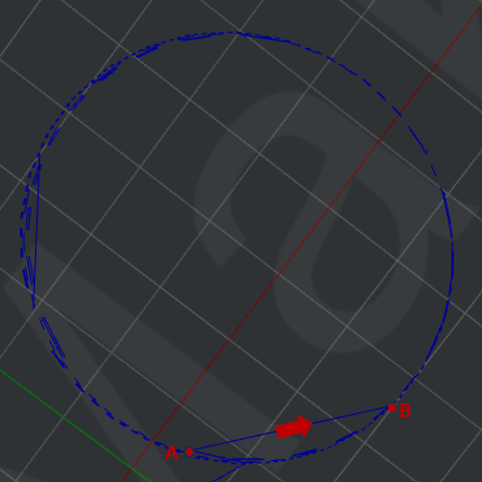
Figure 1: Travel through the hole.
Force Retraction if Travel Length Exceed: With this function enabled, the extruder will retract if the length of travel path moving around the holes is longer than the defined value. Setting Force Retraction if Travel Length Exceed to 0mm will disable this function.
(3) Stop printing Wipe Wall and Wipe Tower: With this function enabled, ideaMaker will detect how many extruders will be used in the remaining printing task. If only one extruder is used, it will stop printing Wipe Wall or Wipe Tower to reduce printing time and filament consumption.
Cool down inactive extruder if only one extruder is used in remaining task: With this function enabled, ideaMaker will detect how many extruders will be used in the remaining printing task. If only one extruder is used, it will stop heating the inactive extruder to avoid filament oozing.
(4) Wipe Wall
Wipe Wall: When printing a model with dual extrusion, a nozzle will print a few extra shells around the model. This Wipe Wall will help to clean the nozzle while printing.
Wipe Wall Mode: The printing mode of Wipe Wall.
ØInterlaced: Wipe Wall loops extruded by different extruders are printed in interlaced layers, which may lead to poor adhesion depending on the different types of filament used.
Ø Nested: Wipe Wall loops extruded by different extruders are printed in different loops in the same layer, and the loops printed by the same extruder will be placed in the same loop index in vertical direction.

Figure 2: The two Wipe Wall modes.
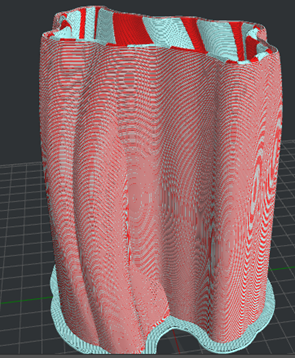
Figure 3: The "Wipe Wall Mode" is set to "Interlaced".
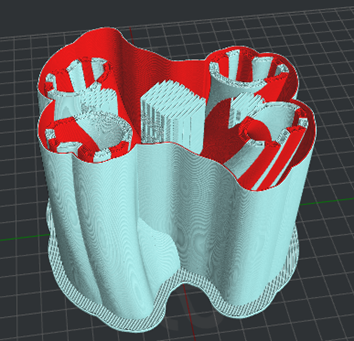
Figure 4: The "Wipe Wall Mode" is set to "Nested".
Wipe Wall Offset: The distance between the outline of the model and the wipe wall.
Wipe Wall Angle: The maximum allowed angle change which the wipe wall will generate (from 0 to 90 degrees).
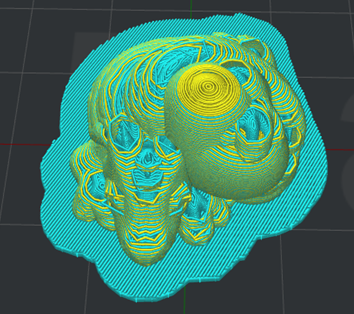
Figure 5: The "Wipe Wall Angle" is set to 90.
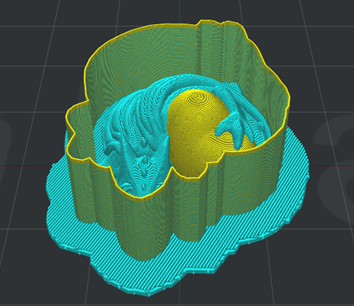
Figure 6: The "Wipe Wall Angle" is set to 0.
Wipe Wall Loop Lines: The quantity of shells that make up the wipe wall.
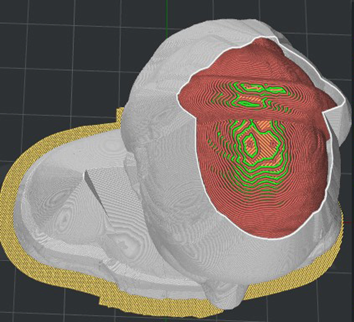
Figure 7: The "Wipe Wall Loop Lines" is set to 1.

Figure 8: The "Wipe Wall Loop Lines" is set to 2.
Wipe Wall Type: The shape of the Wipe Wall shells. The primary difference is the distance between the model and the Wipe Wall.Contoured is the one which is closest to the original model’s shape. WaterFall is the type which will follow the original shape of the model, but a vertical drop will be used if the lower structure is narrow than the above one. Vertical will find the widest part of the model and generate a vertical-type Wipe Wall.

Figure 9: Select a Wipe Wall type for your model.
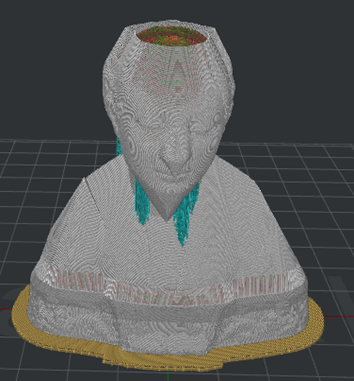
Figure 10: The "Wipe Wall Type" is set to "Contoured".
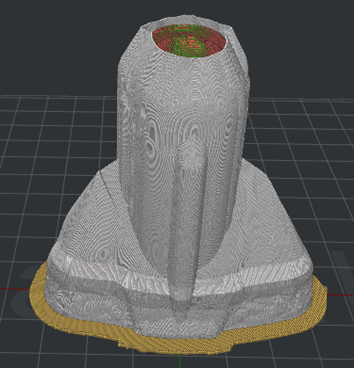
Figure 11: The "Wipe Wall Type" is set to "WaterFall".
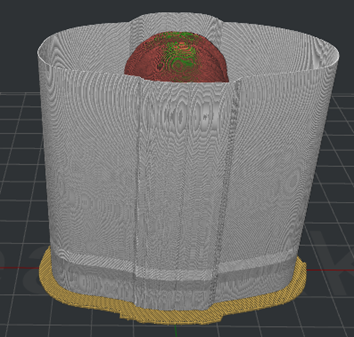
Figure 12: The "Wipe Wall Type" is set to "Vertical".
Wipe Wall Speed: The printing speed for wipe wall.
Force printing Wipe Wall for single extruder prints: With this function enabled, extruder will print Wipe Wall automatically. This function only works for small models to prevent the model from shaking or collapsing during printing.
(5) Wipe Tower
Wipe Tower: A block created outside of the model, which is used for wiping the nozzle which is about to start printing. When the printer is set to only one nozzle, this area will be hidden.
Wipe Tower Mode: The printing mode of Wipe Tower.
ØInterlaced: The Wipe Tower extruded by different extruders are printed in interlaced layers, and it may lead to poor adhesion depending on the different types of filament used.
ØNested: The Wipe Tower extruded by different extruders are printed in different loops in the same layer, and the loops printed by the same extruder will be placed in the same loop index in vertical direction.
ØMultiple: There are multiple resulting Wipe Towers printed by different extruders. This brings better adhesion for different filament but consumes more material.

Figure 13: Select a Wipe Tower type for your model.
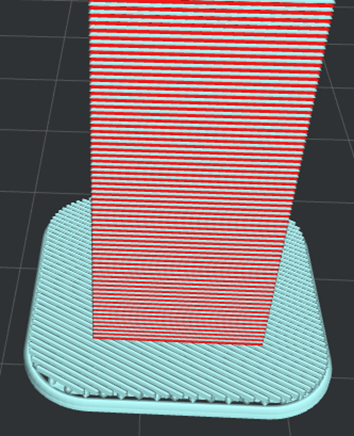
Figure 14: The "Wipe Tower Mode" is set to " Interlaced".
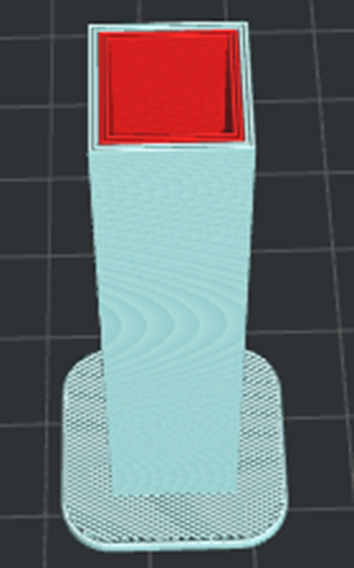
Figure 15: The "Wipe Tower Mode" is set to "Nested".
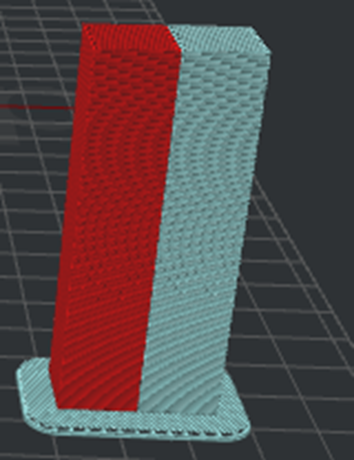
Figure 16: The "Wipe Tower Mode" is set to "Multiple".
Wipe Tower Shape: The shape of the Wipe Tower.

Figure 17: Select a Wipe Tower shape for your model.
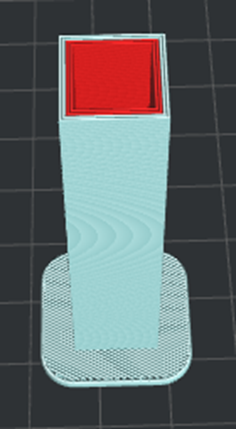
Figure 18: The "Wipe Tower Shape" is set to "Rectangle".
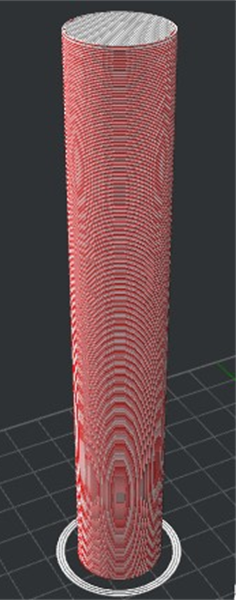
Figure 19: The "Wipe Tower Shape" is set to "Circle".
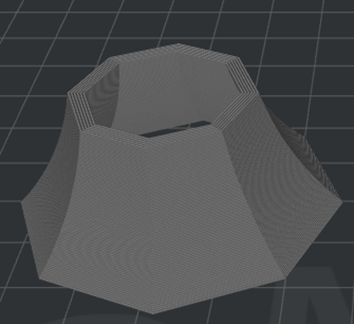
Figure 20: The "Wipe Tower Shape" is set to "Octagonal Pillar".
Wipe Tower Minimal Volume: The minimum required extrusion amount in the per-layer of wipe tower for each extruder. This function only works when the Wipe Tower mode is Nested.
Wipe Tower Loops Per Extruder: The number of shell loops in the per-layer of Wipe Tower for each extruder. Enable this option to print the wipe tower without being limited by the option of Wipe Tower Minimal Volume. This function only works when the Wipe Tower mode is Nested.
Octagonal Pillar Diameter: The diameter of the bottom and the top of the Wipe Tower if the Wipe Tower shape is Octagonal Pillar.
Wipe Tower Width: The width of the Wipe Tower.
Wipe Tower Infill Ratio: The density of Wipe Tower structure.
Wipe Tower Speed: The printing speed for wipe tower.
Placed at the Fixed Position of the Platform: With this function enabled, Wipe Tower’s position would be fixed as shown Figure 21.
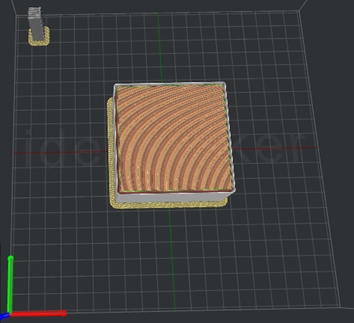
Figure 21: Placed at the Fixed of the Platform is enabled.
Wipe Tower Offset: The distance between Wipe Tower and the model along the X-axis and Y-axis.

Figure 22: The distance between the Wipe Tower and the model. The left value represents the distance in the X-axis direction, and the right value represents the distance in the Y-axis direction.
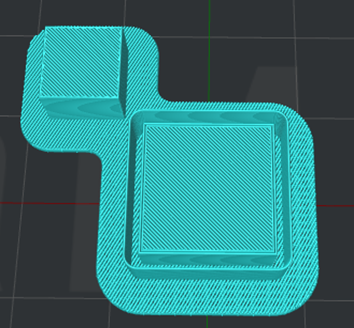
Figure 23: The Wipe Tower and the Wipe wall.
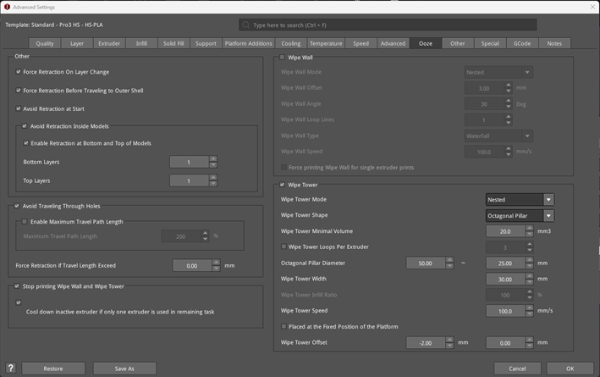
Figure 24: The Ooze tab.
