

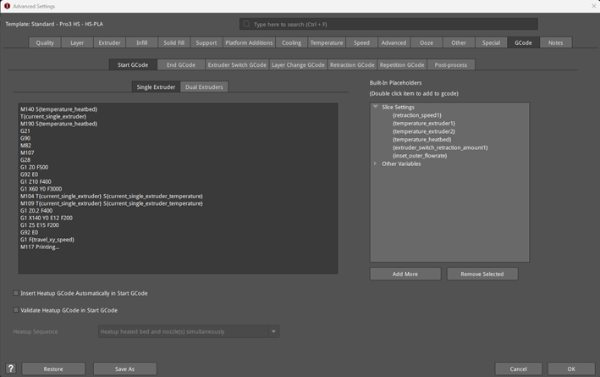
Figure 1: The GCode tab.
(1) Start GCode: Customized GCodes which will be executed at the start of a print job (after preheating extruders and the heat bed).
Single Extruder: The initial GCode when the number of extruders is set to 1.
Dual Extruders: The initial GCode when the number of extruders is set to 2.
The initial GCode for the single extruder printing and dual extruders printing is different.
Note: If the number of the extruder is set to 2 but only 1 extruder is used during actual printing, the system will automatically read the initial GCode of the Single Extruder.
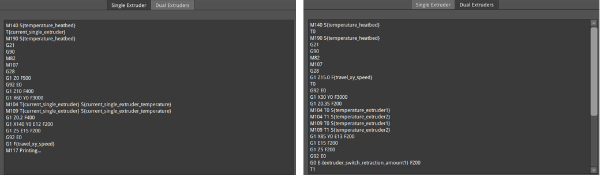
Figure 2: The initial GCode for the Single Extruder (Left) and the Dual Extruders (Right).
Insert Heatup GCode Automatically in Start GCode: The heatup GCode will be inserted into the Start GCode automatically. This should always be inserted in the Start GCode, otherwise the printer will start printing without heating the nozzle or the heated bed. If you want to change the Heatup GCode to a custom code, please disable this option and input your codes.
Validate Heatup GCode in Start GCode: With this function enabled, ideaMaker will check for the Heatup GCode in the Start GCode automatically.
Heatup Sequence: The order for heating.
Ø Heatup heated bed and nozzle(s) simultaneously: With this function enabled, the heated bed and nozzle(s) will be heated up at the same time.
Ø Heatup nozzle(s) first: With this function enabled, the nozzle(s) will be heated up first, followed by the heated bed.
Ø Heatup heated bed first: With this function enabled, the heated bed will be heated up first, followed by the nozzle(s).

Figure 3: Heatup sequence.
You can add more slice settings by clicking the Add More button. A dialog box of Add Settings will pop up, as shown in Figure 4. After selecting your desired settings, click OK to add the slice setting to the right list. Delete the setting by selecting the value in the right list and clicking the Remove Selected button.
You can add the Placeholder to the left code box by double-clicking the slice settings in the right list.
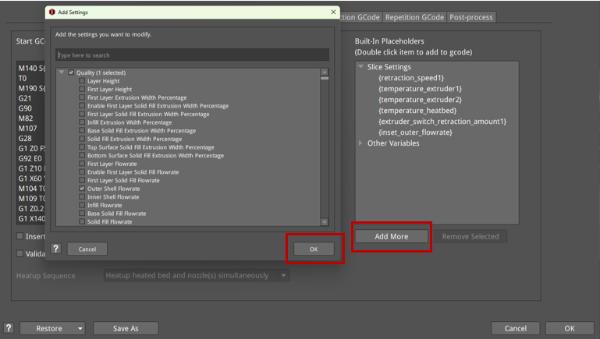
Figure 4: Adding more placeholder options for GCode.
(2) End GCode: The GCode that is executed at the end of a print job.
Select the extruder number you want to check by selecting End GCode When the number of extruder is. 1 refers to the End GCode when the number of extruders is set to 1. 2 refers to the End GCode when the number of extruders is set to 2.
Turn off Fan Cooling in End GCode: With this function enabled, the controllable cooling fan will be turned off at the end of a print job.
Reset Global Flow Rate to 100% in End GCode: With this function enabled, the global flow rate will be changed to be 100% at the end of a print job.
Turn off Nozzle Heating in End GCode: With this function enabled, the nozzle will not heat up at the end of a print job.
Traveling along Z axis after finishing printing models: With this function enabled, the build plate will move up along the defined height in Z-axis after finishing printing models.
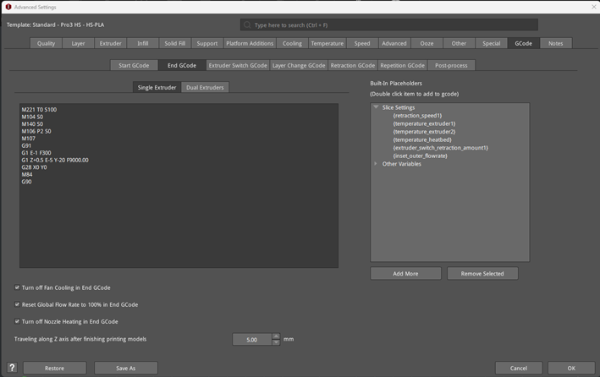
Figure 5: The End GCode tab.
(3) Extruder Switch GCode: The customized GCode which will be executed when extruders switch.
It can be applied with an “if” command, such as: [if {new_extruder}=1] M104 T0 S160, which means when using the right nozzle, the temperature of the left nozzle will cool down to 160 degrees.
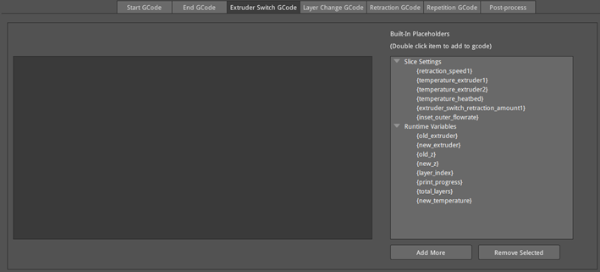
Figure 6: The Extruder Switch GCode tab.
(4) Layer Change GCode: The customized GCode which will be executed when the layer changes.
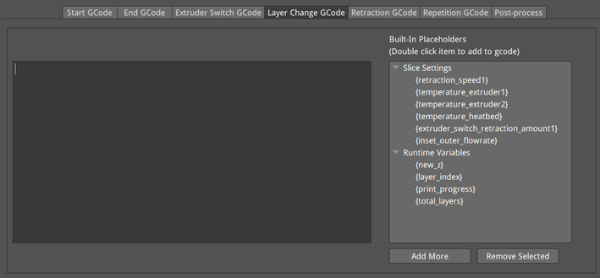
Figure 7: The Layer Change GCode tab.
(5) Retraction GCode: The GCode which will be executed when the filament retracts.
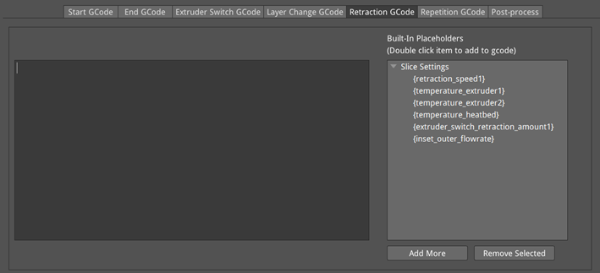
Figure 8: The Retraction GCode Tab.
(6) Repetition GCode: The GCode which will be printed repeatedly. This only works for the belt printer.
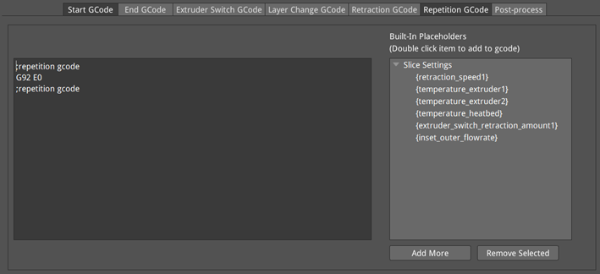
Figure 9: The Repetition GCode tab.
(7) Post-process: The GCode which can be deleted or replaced in batches.
Add: Inserts the command into the Post-process Commands list.
Replace SOURCE with TARGET: The commands in the Source list will be replaced with the commands in the Target list.
For example, after clicking Add, the Add Post-process Command panel will pop up. Insert "G92 E0" into Source list and insert "G1 X20 Y0 F140 E30" into Target list, as shown in Figure 10, and then set the Command Type to Replace SOURCE with TARGET. Press the OK button, and the Post-process Command will be edited, as shown Figure 11.
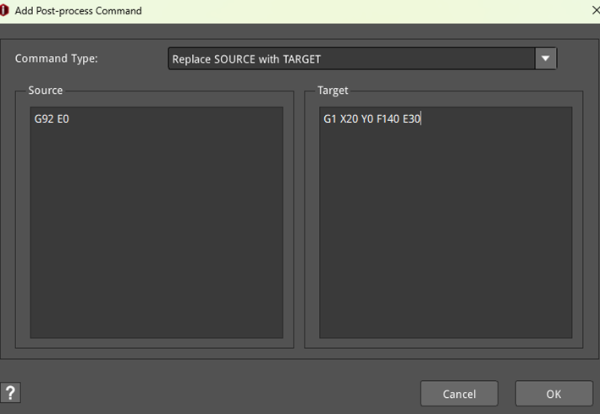
Figure 10: Insert the GCode commands into the Source and Target lists.

Figure 11: The Post-process Commands list.
Remove all occurrences of SOURCE: With this function enabled, all the commands under the Source list will be deleted.
For example, insert "G92 E0" into Source list and insert "G1 X20 Y0 F140 E30" into Target list, as shown Figure 12, and then set the Command Type to Remove all occurrences of SOURCE. Press OK button, and the Post-process Command will be edit, as shown in Figure 13.
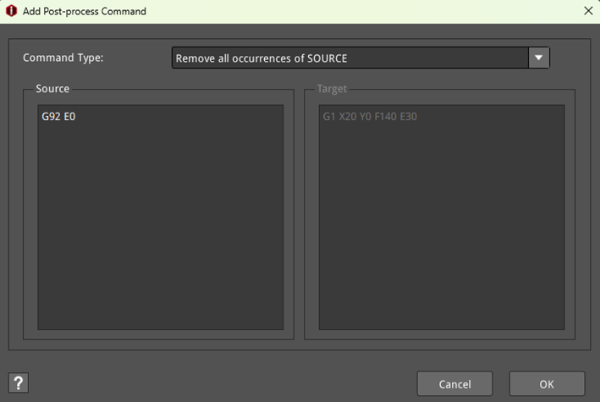
Figure 12: Insert the GCode commands into the Source and Target lists.

Figure 13: The Post-process Commands listwith the Remove All Occurrences of SOURCE feature.
Remove: Deletes the selected command from the Post-process Commands list.
Customize GCode Filename: Defines the GCode filename.
With this function enabled, the GCode file name can be defined by users. For example, if the printer type is Raise3D Pro2 (abbreviated as R3D_PRO2), the material type is PLA 1.75mm (abbreviated as PLA), the slice template’s layer height is 0.25mm and the model’s name is 20mm_Calibration_Box, the exported GCode file name after slicing will be “20mm_Calibration_Box_R3D_PRO2_PLA_0.2500mm”.
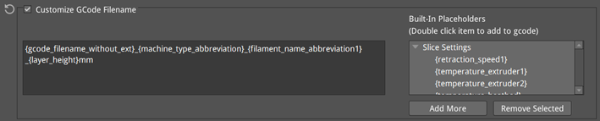
Figure 14: Customize GCode Filename.
External Terminal Command: Supports calling external commands or programs to further process the file before exporting or loading GCode file. Users can add third-party programs such as ArcWelder.
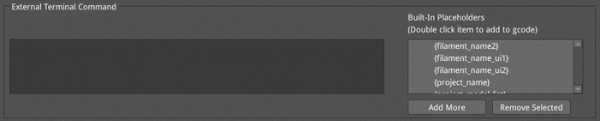
Figure 15: The External Terminal Command.
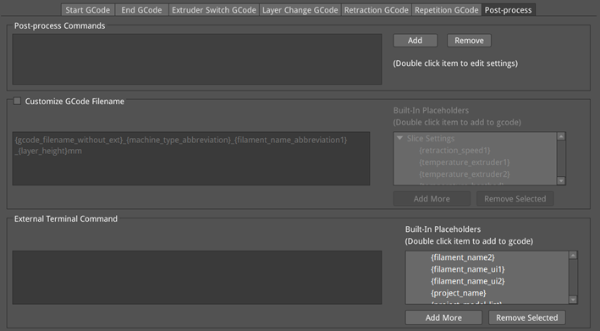
Figure 16: The Post-process tab.
