

If you have set the Extruder Count to 2, the Extruder tab will show Left Extruder and Right Extruder. If you have set the Extruder Count to 1, the Extruder tab will show Primary Extruder only. And we set the primary extruder as left extruder by default.
Left Extruder:
(1) General
Extrusion Width: The width of extruded line. The default extrusion width will be the same as diameter of the original 0.4mm nozzle. If you have changed your nozzle to another size in Printer Settings, please also remember to edit Extrusion width.
(2) Retraction
Retraction: Enables filament retraction to prevent stringing.
Retraction Speed: The extruder speed for the retraction. A higher retraction speed works better. But it can lead to filament grinding when the speed is too high.
Retraction Material Amount: The amount of filament retraction. Setting the value to 0 means that there is no retraction at all.
Minimal Travel of Retraction: The minimum travel distance that defines if the filament needs to be retracted. Set this item to make sure you do not get a lot of retractions in a small area.
Minimal Amount of Retraction: The minimal amount of extrusion that defines if the filament needs to be retracted. If the extrusion amount for printing is less than the minimal amount of retraction, the retraction will automatically be ignored by the system. This avoids retracting a lot along the same piece of filament, which will flatten the filament and cause grinding issues.
Extra Restart Amount: The amount of extrusion compensation after the retraction.
Restart Speed: The extruder speed when the filament is extruded out after the retraction.
Avoid Unnecessary Retraction in Support: With this function enabled, the extruder will reduce unnecessary retractions when printing support fill lines.
Notes:
1. This function can avoid filament grinding and reduce printing time. But it will cause oozing between supports.
2. If the nozzle moves among models or holes when printing supports, retraction will still be enabled to avoid collision between the nozzle and the printed parts.
Z Hop at Retraction: The nozzle will lift from the surface of the model during retraction. Retraction is set before long-distance movement, and the retraction speed is normally faster than the normal printing speed. Z Hop can reduce the nozzle’s scratching during fast movement.
Z Hop performed: The selected structures where Z Hop will be performed.
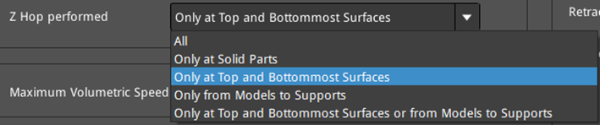
Figure 1: Select the structure where the Z Hop will be performed.
Ø All: With this option selected, Z Hop will be performed anywhere during retraction.
Ø Only at Solid Parts: With this option selected, Z Hop will be performed on the top and bottom solid infill layers only.
Ø Only at Top and Bottommost Surfaces: With this option selected, Z Hop will be performed on the top and bottommost surfaces of the solid infill layers only and the bottommost surfaces will not be floated in the air.
Ø Only from Models to Supports: With this option selected, Z Hop will be performed only to avoid collision when travelling from the model to the support or from the support to the model.
Ø Only at Top and Bottommost Surfaces or from Models to Supports: With this option selected, Z Hop will be performed when printing from the top to the bottommost surface, or across from the model to the supports and from the supports to the model only.
(3) Coasting
Coasting Distance: With this function enabled, the last part of the extrusion path will be replaced with a travel path only when there is no extrusion, as shown in Figure 2. The distance of the extrusion path’s last part is the Coasting Distance. With this function enabled, the filament leaking will be reduced when the nozzle travels from one point to another point.
Apply Coasting on Grid Infill and Lines Solid Fill: With this function enabled, coasting function will be applied on grid-shaped infill structures and line-shaped solid parts, as shown in Figure 4.
Note: Please don’t set a Coasting Distance that is too large or it may cause gaps between layers.
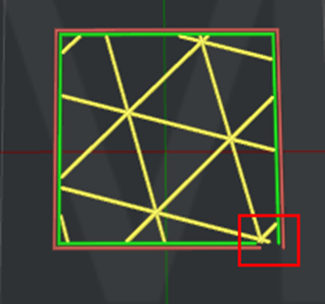
Figure 2: Coasting Distance is set to 2mm.
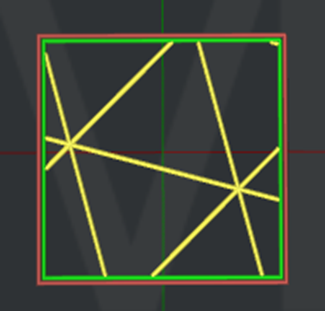
Figure 3: Coasting Distance is set to 0.
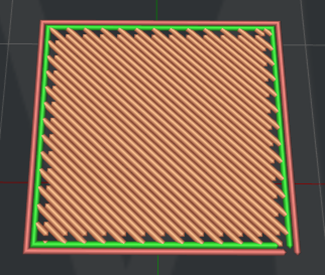
Figure 4: Enable “Apply Coasting on Grid Infill and Lines Solid Fill”.
(4) Wipe
Outer Shell Wipe Distance: The nozzle’s wipe distance at the end of the outer shell, as shown in Figure 5.
Outer Shell Wipe Speed: The extruder movement speed at the end of the outer shell.
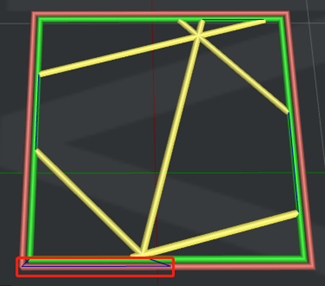
Figure 5: “Outer Shell Wipe Distance” is set to 10mm.
Wipe Nozzle for Support: The nozzle’s wipe distance at the end of the support, as shown in Figure 6.
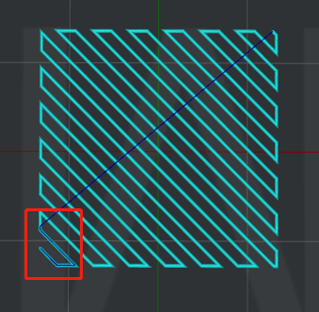
Figure 6: “Wipe Nozzle for Support” is set to 10mm.
Wipe Nozzle for Infill: The nozzle’s wipe distance at the end of the infill, as shown in Figure 7.
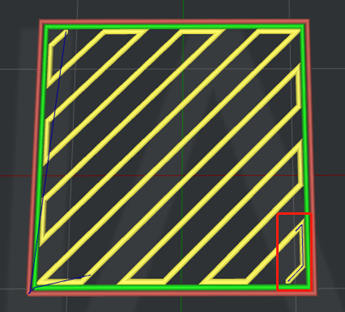
Figure 7: “Wipe Nozzle for Infill" is set to 5mm.
Wipe Nozzle for Solid Fill: The nozzle’s wipe distance at the end of the solid infill, as shown in Figure 8.
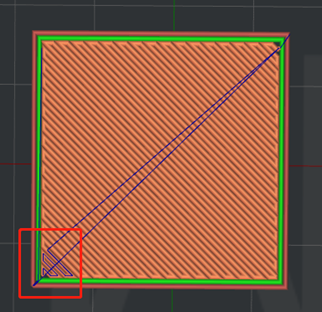
Figure 8: “Wipe Nozzle for Solid Fill" is set to 10mm.
Wipe Nozzle for Thin Wall: The nozzle’s wipe distance at the end of the Thin Wall.
Retraction during Wipe: Compared to retracting all at once, this function can reduce filament leakage and stringing during Hyper Speed printing. (Note: To use this function, Wipe needs to be enabled first). When this function is enabled, the printing path sequence is: Extrude the feature > Retract some filament > Retract the remaining filament while wiping. When this function is disabled, the printing path sequence is: Extrude the feature > Wipe > Retract.
(5) Extruder Switch Ooze Control
Extruder Switch Ooze Control: The retraction settings for extruders when one nozzle completes printing of one layer and the other nozzle starts printing. When the printer is set to only one nozzle, this area will be hidden.
Retraction Speed of Extruder -switch: The speed of retraction when extruders switch.
Retraction Amount of Extruder -switch: The amount of filament retraction when extruders switch. 0 refers to no retraction at all.
Restart Speed of Extruder-switch: The extrusion speed after the retraction for an extruder change.
Extra Restart Amount of Extruder-switch: The amount of additional filament compensation after the retraction for an extruder change.
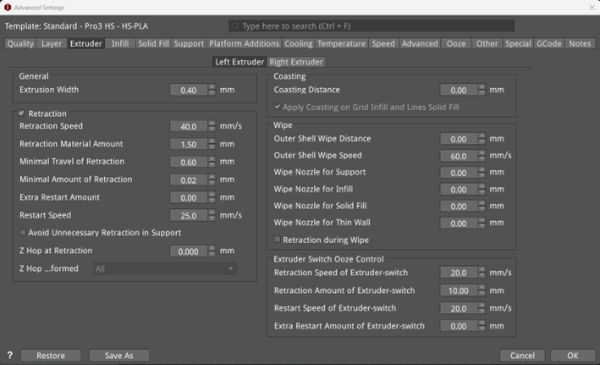
Figure 9: The Left Extruder tab.
Right Extruder:
Enable Right Extruder Configuration: With this function enabled, the following settings will be activated, such as Retraction. If it is not enabled, the right extruder will continue to use the settings of the left extruder.
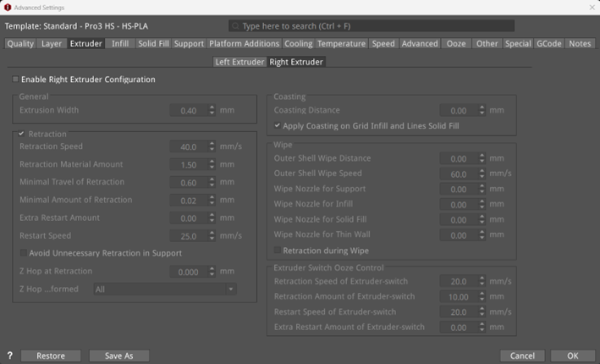
Figure 10: The Right Extruder tab.
