Enable Cooling Fans refers that with this function enabled, the controllable cooling fans speed like Maximum Fan Speed, Fan Control and Blip fan speed to 100% when starting from low speed) can be edited.
(1) Cooling
Minimal Layer Print Time refers to the minimum time spending in a layer to provide enough cooling time for the just printed out features in this layer before the next layer starts.
Slow Down Printing Speed refers that with this function enabled printing speed would be reduced to the value between current printing speed and the minimal printing speed. Note: This function only works for when single layer used time is less than minimal layer print time.
Minimal Printing Speed refers that we need to reduce print speed to increase print time when layer print time less than Minimal Layer Print Time.
Increase Fan Speed refers that with this function enabled fan speed would be increased between the max and current fan speed. Note: This function only works for when single layer used time is less than minimal layer print time.
Maximum Fan Speed refers to the maximum speed of the extra cooling fan. If the cooling setting slows down the printing speed, the fan could be adjusted between the max and current fan speed.
(2) Fan Control
Fan Control: only the downward model fan on single extruder printer of N series and the two side fans of Pro2 series are controllable. The side extruder cooling fan on N series is constantly on.

Figure 5.74: Controllable cooling fan.
Layer refers to selecting at which layer to change the fan speed.
Fan Speed refers control the speed of the downward model fan on single extruder printer.
You can add the specific layer where you want to change the fan speed at by clicking the Add Fan Point button and input the speed in right box. And delete it by selecting the value you want to remove in right box and clicking the Remove Fan Point button.
Note: If you want to change the fan’s speed, enable the function of Use PWM-Controllable fans which is under the Printer Settings as Figure 5.75. If not, this tab will be disabled and cannot be edited as Figure 5.76.
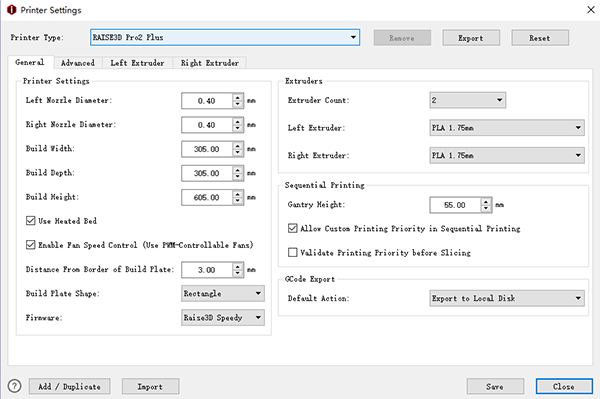
Figure 5.75: Use PWM-Controllable fans
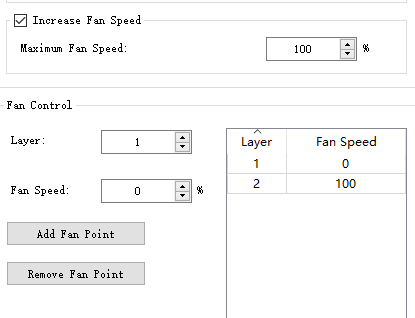
Figure 5.76: Fan Speed.
(3) Blip fan speed to 100% when starting from low speed
Low Fan Speed Threshold refers to that fan speed will be increased to be 100% automatically if current fan speed is lower than threshold.
Blip Fan Speed Pause Duration refers to that pause the printer for a period in milliseconds after fan speed blipped to 100% and before increased to a higher speed.
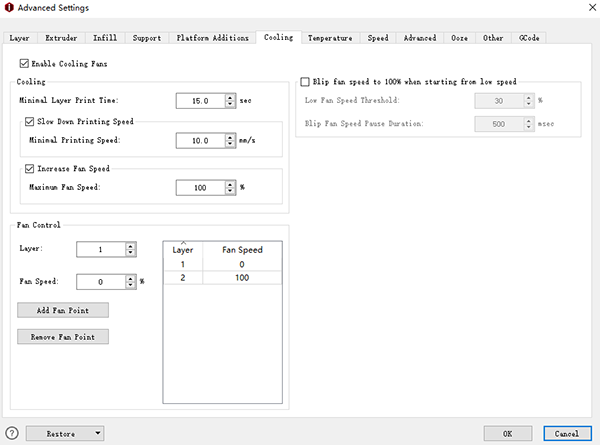
Figure 5.77: The Cooling tab.
-END-