

Option 1: Importing a slice template (.bin or .data file) from your computer, as shown in Figure 1.
Template Name: refers to the template’s name which you import, and you can also rename it by yourself.
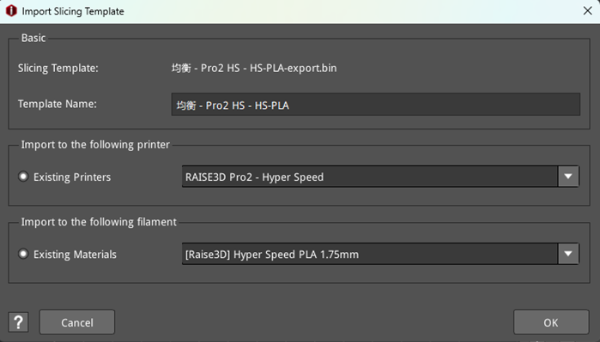
Figure 1: Import Slicing Template – modify template name.
Option 2: Importing a slice template (.bin or .data file) from OFP.
Open Filament Program (OFP), is a collaboration between Raise3D and Filament Manufacturers to identify and select the best performing filaments and create optimized templates for them to function on Raise3D printers.
With this function enabled, we can import a slice template into ideaMaker, as shown in Figure 2.
For example, we can select the filament brand 3DXTECH and click Next button, then we can choose the printer type and the filament type, as shown in Figure 3.
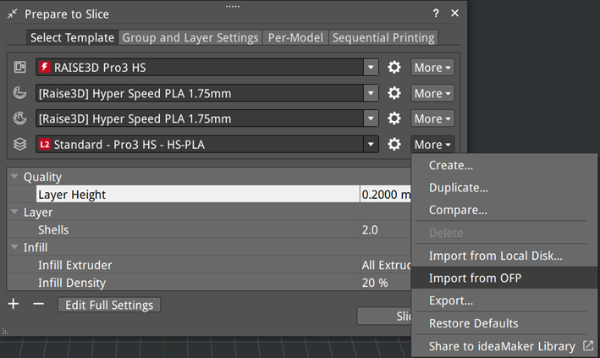
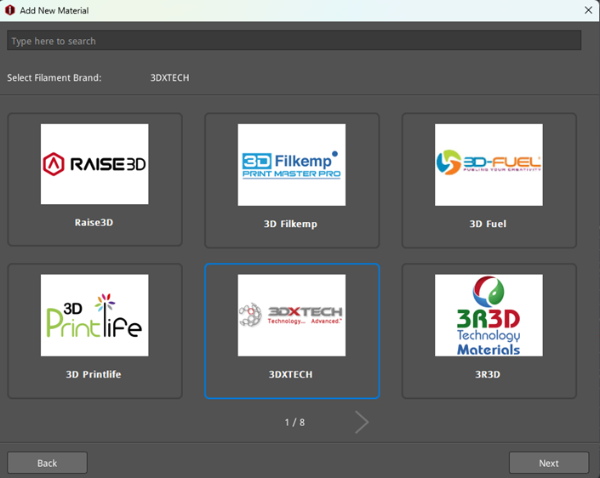
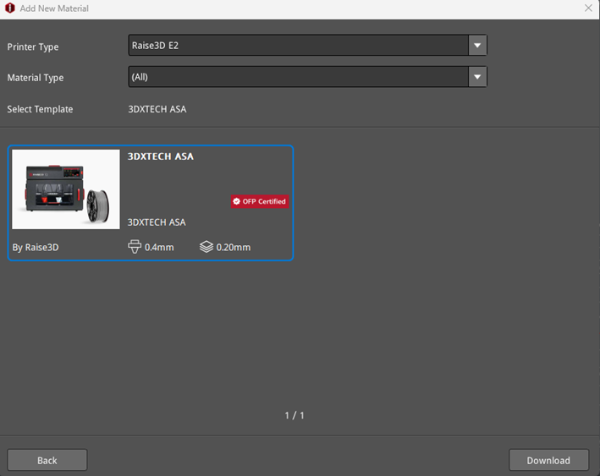
Figure 2: Add OFP slice template.
Click Download button, and then click Import to ideaMaker button. The Import Slicing Template panel will pop up. You can modify the template’s name, select the existing printer and material, and then click OK. The downloaded OFP template will be imported into ideaMaker.
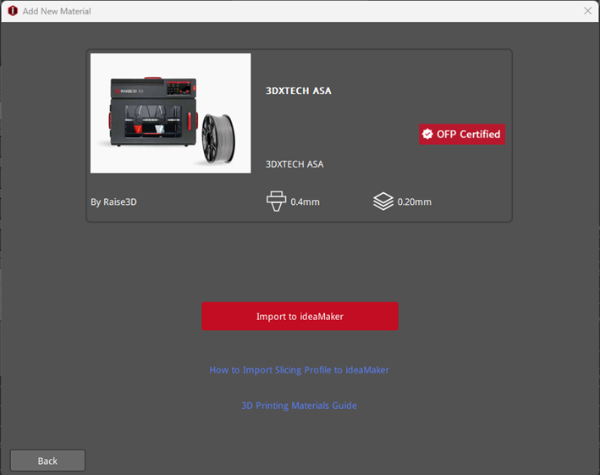
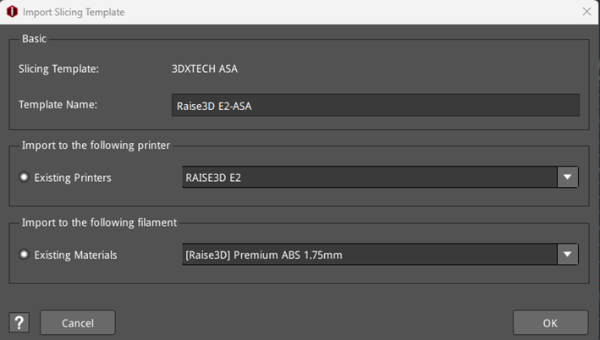
Figure 3: Import the OFP slice template into ideaMaker.
