

Open ideaMaker, and click File > Examples > Calibration > Calibration-Extruder-Offset.idea.
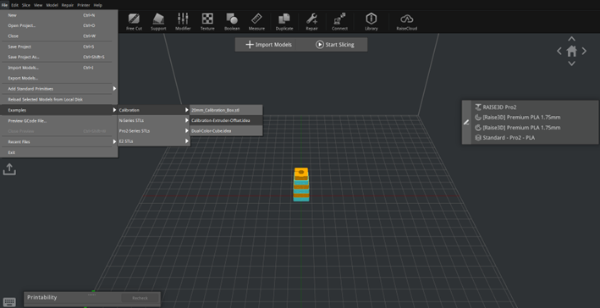
Figure 1: The Calibration-Extruder-Offset model.
First, click Prepare to Slice icon. Second, set the printer type to Raise3D Pro2 (Plus), the filament to Raise3D Premium PLA for the left and right nozzles, then select a printing template. Lastly, click Slice to slice the calibration model (Note: Slice the model with default settings, and do not change any parameter).
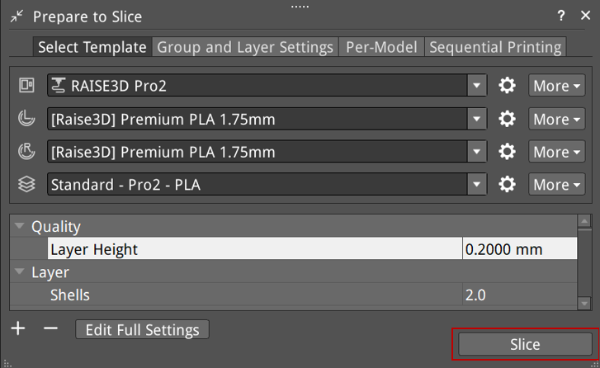
Figure 2: Start slicing.
Print it, then view the printed model from the top surface and align this model with the visual graphic seen on the screen. The direction can be identified with the large notch in the Y-axis direction, and the small notch in the X-axis direction.
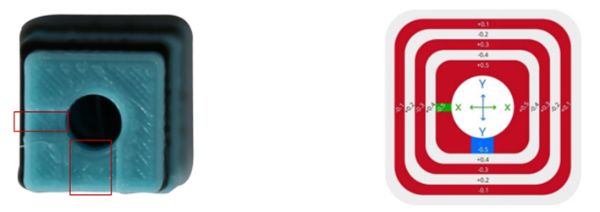
Figure 3: View the Printed Model.
If the original offset setting is correctly aligned, the model will be ladder-shaped and evenly spaced in all four directions.
This is the position with X Offset = 0, Y Offset = 0.
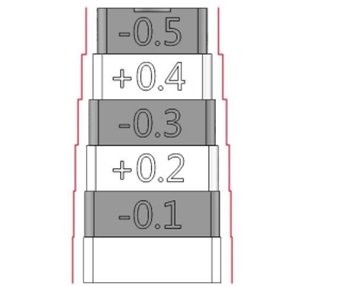
Figure 4: The left and right extruders are aligned properly.
If the original offset requires adjustment, check each layer and identify two aligned layers for each direction. Record the upper value depicted on the model.
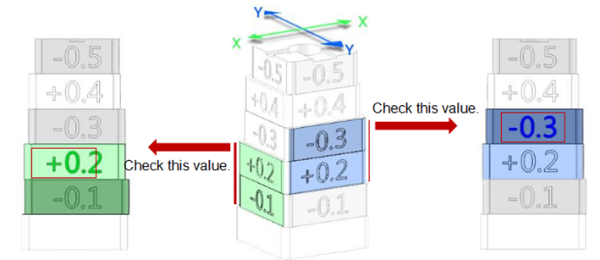
Figure 5: Examples.
In the case above, the values are: X Offset = + 0.2mm, Y Offset = -0.3mm.
Calculate the offset using the formula on the next page.
Right Extruder Offset X = 25mm + (+0.2mm) = 25.2mm
Right Extruder Offset Y = 0mm + (-0.3mm) = -0.3mm.
Open the Extruders interface, which can be found by navigating via the touchscreen (Setting > Machine > More Settings > Hardware > Extruders), and then record the offset value as shown in Figure 6. Check their X and Y offsets and add your recorded values to what is shown on the screen. If X is set to 25 and Y is set to 0, we will end up with the values shown above based on the example.
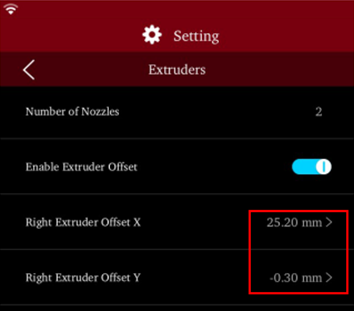
Figure 6: Record Offset Value into the Touchscreen.
Open ideaMaker, and click File > Examples > Calibration > Dual-Color-Cube.idea.
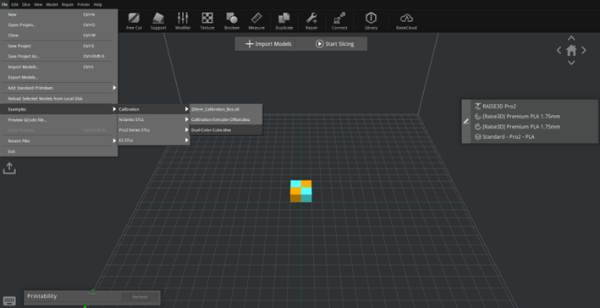
Figure 7: Dual-Color-Cube.
Slice it with PLA default settings, then print it, and then view the printed model from the top surface to see if there are any obvious gaps between the colored blocks as shown in Figure 8.If there are noticeable imperfections, repeat the calibration steps. If there are no obvious gaps present in the model, your printer is now properly adjusted for dual extrusion printing.
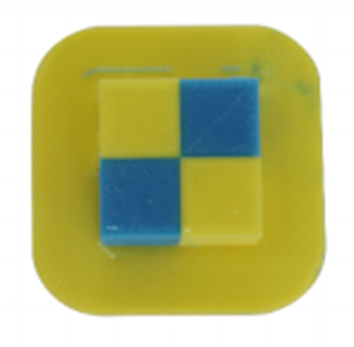
Figure 8: Dual-Color-Cube printing result.
