

Power on the printer. Click the setting button, as shown in Figure 1.
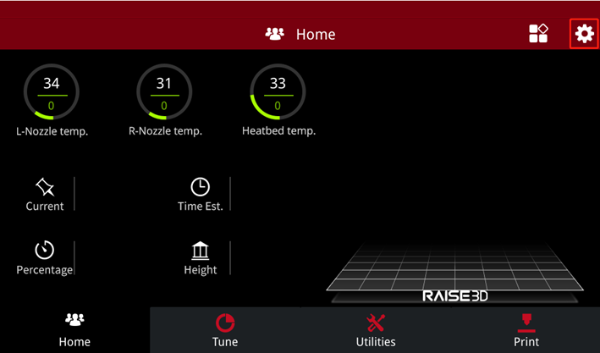
Figure 1: Settings.
Click the Maintenance button, and then click the Offset Calibration button, as shown in Figure 2 and Figure 3.
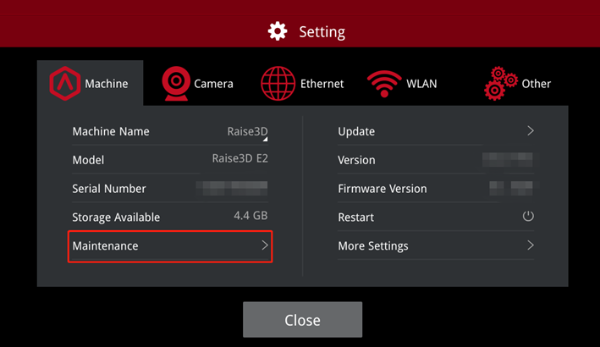
Figure 2: Maintenance.
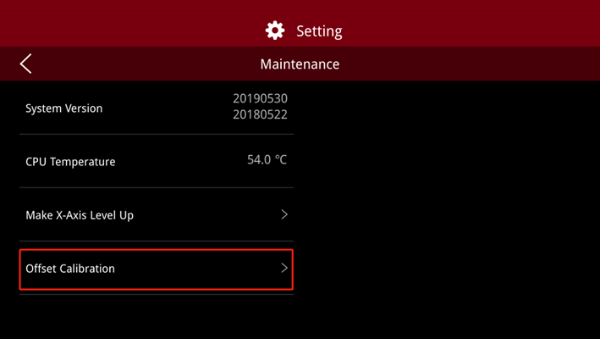
Figure 3: Offset Calibration.
Make sure the left and right nozzles installed on your printer are 0.4mm in diameter, and the filament is PLA.
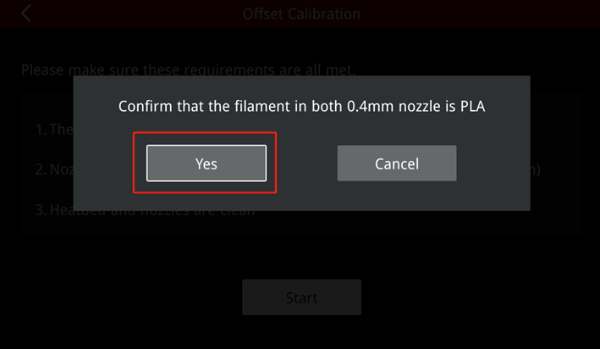
Figure 4: Confirm Nozzle Diameter and Material.
Choose R-Nozzle XY Offset, and then click the Next button, as shown in Figure 5.
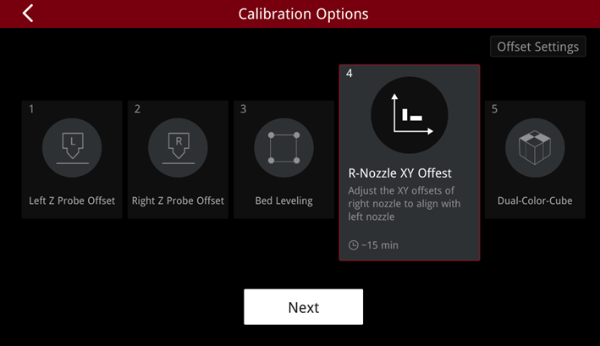
Figure 5: R-Nozzle XY Offset.
Make sure the build plate, nozzles, and probes are clean. Then click the Next button, as shown in Figure 6.
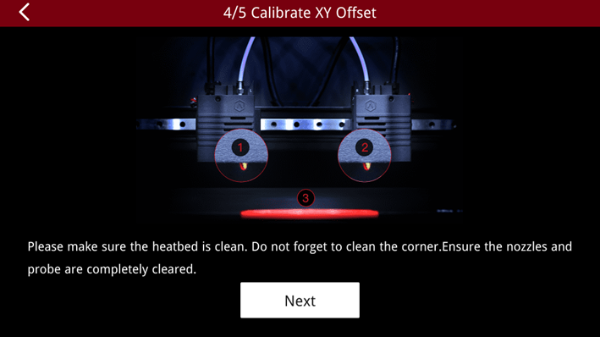
Figure 6: Clean the build plate, nozzles and probes.
Print the Offset Calibration model. After the printing task is complete, the touchscreen will display the interface, as shown in Figure 7. Select the pair of vertical lines that you think are properly aligned, and then choose the corresponding line number on the touchscreen and click the Next button.
For example, if the final printing result is the first line (starting from the middle point, the first line on the right), you just need to click 1 on the touchscreen.
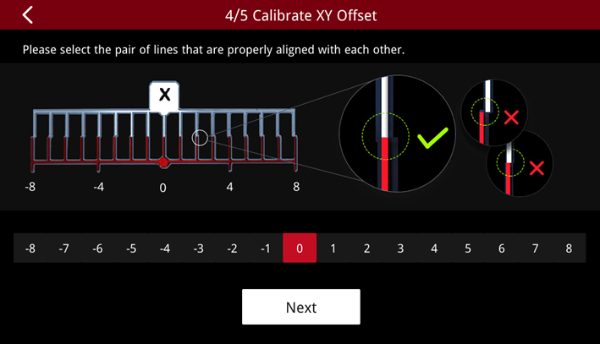
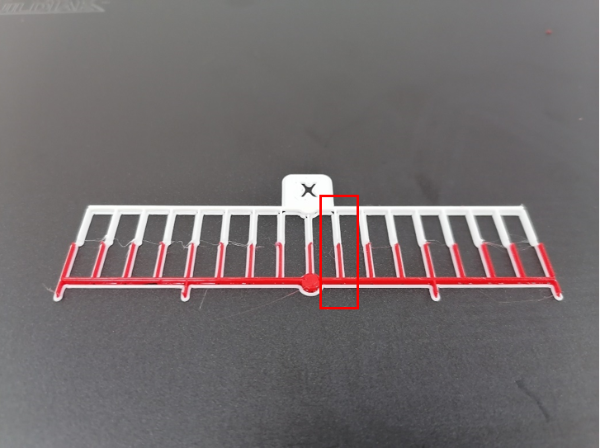
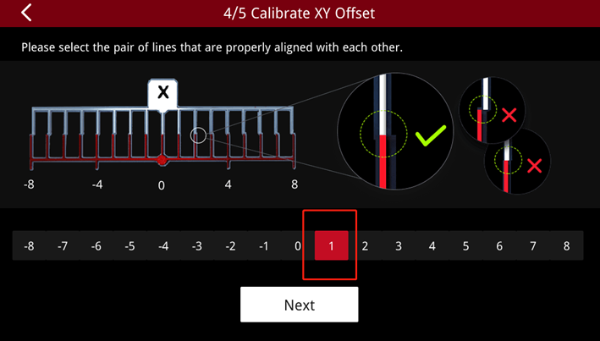
Figure 7: Select the most aligned lines in the X-axis direction.
Print the Offset Calibration model. After the printing task is complete, the touchscreen will display the interface, as shown in Figure 8. Select the pair of the left and right lines that you think are properly aligned, then choose the corresponding line number on the touchscreen and click the Next button.
For example, if the final printing result is the first line (starting from the middle point, the first line on the left), you just need to click -1 on the touchscreen.
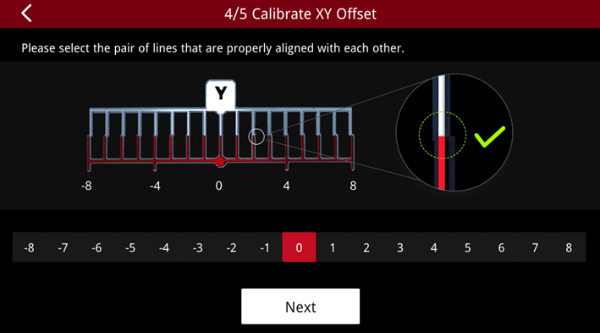
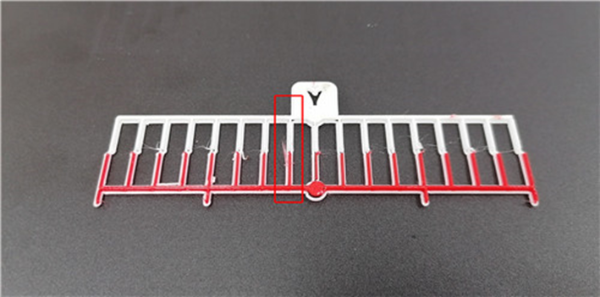
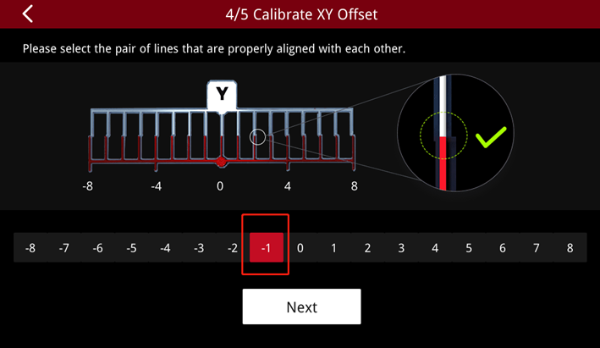
Figure 8: Select the most aligned lines in the Y-axis direction.
According to the lines you chose, RaiseTouch will automatically figure out the XY offset value, and save it to the printer. Click the Done button as shown in Figure 9.
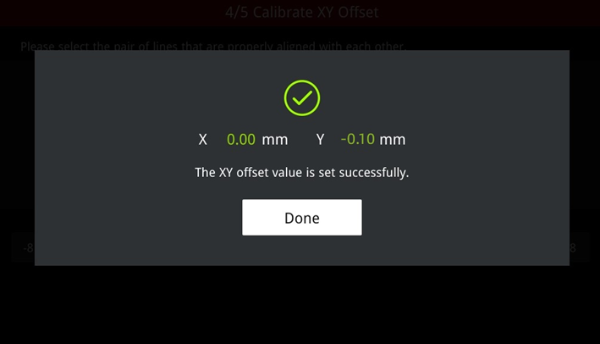
Figure 9: Apply XY Offset Value.
Choose Dual-Color-Cube, and then click the Next button to print the calibration model, as shown in Figure 10.
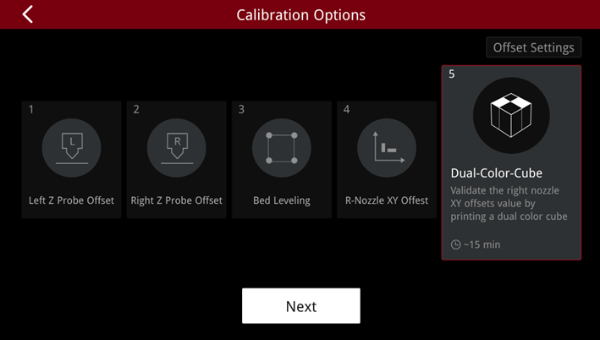
Figure 10: The Dual-Color-Cube.
If the models printed by the left and right extruders are well aligned, click the Done button to complete the Calibration XY Offset operation.
If there is an overlap or gap between the left and right extruder printed models, click Retry to recalibrate the XY offset.
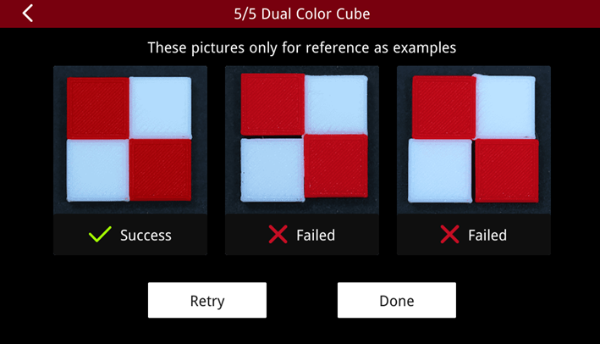
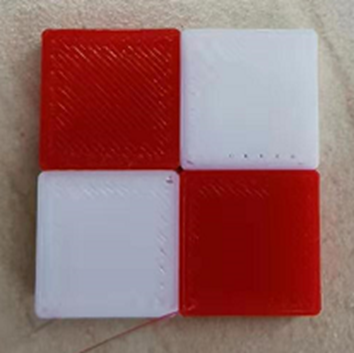
Figure 11: The Dual-Color Cube printing result.
