

Open the Prepare to Slice panel and click More (for the Left/Right nozzle’s filament) > Add to open the Add New Material panel. You can choose your desired material from System Materials (Include Templates), System Materials and Custom Materials in this panel.
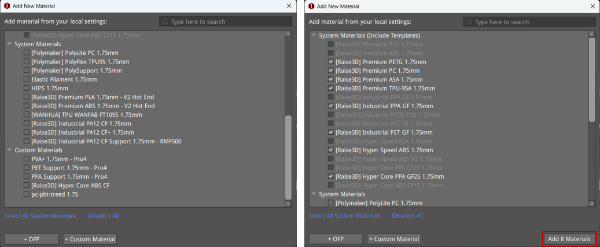
Figure 1: Add New Material panel.
For the RAISE3D Pro3 - Hyper Speed Kit and RAISE3D Pro3 Plus - Hyper Speed Kit models, three new tabs have been added to the Add New Material panel: System Materials, OFP and Custom Materials, making it easier for users to select materials of different categories, as shown in Figure 2.
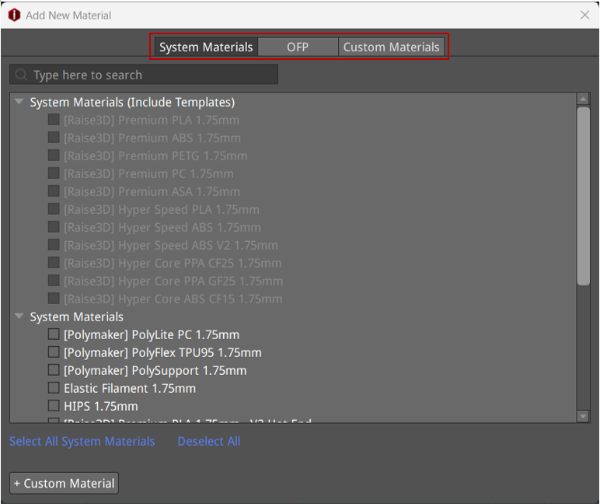
Figure 2: Add New Material panel (only applicable to the printer models: RAISE3D Pro3 - Hyper Speed Kit and RAISE3D Pro3 Plus - Hyper Speed Kit).
Select All System Materials: After clicking on this button, all selectable materials in the System Materials (Include Templates) list will be automatically selected (previously added materials are not selectable). At this time, the Add X Materials button (X is a variable) will appear in the lower-right corner of the Add New Material panel, as shown in the red box in Figure 1, and clicking on this button will add all selected materials to the Prepare to Slice panel.
Deselect All: After clicking on this button, all newly-selected materials (excluding previously added materials) will be unselected.
+ OFP: Import a new material from the Open Filament Program (OFP). Please see Chapter 5.1.6 Option 2 for more details.
+ Custom Material: Click this button to open the Add Material panel. In this panel, you can edit the material’s parameters, such as Material Type, Display Name, Material Type Abbreviation, Brand, Diameter, Density, Price, Flowrate, Color, and so on.
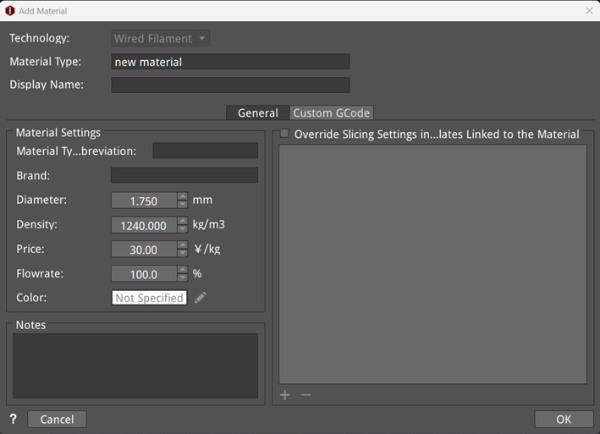
Figure 3: Set up the newly-added material in the Add Material panel.
Open the Prepare to Slice panel, select filament for the Left/Right nozzle, and click More (for the Left/Right nozzle’s filament) > Duplicate to open the Add Material panel. The selected filament’s settings for the left/right nozzle will be displayed in this panel. If you do not make any change to the settings, clicking OK will copy the previously selected material and automatically name it "Selected Material - copy", as shown in Figure 3.
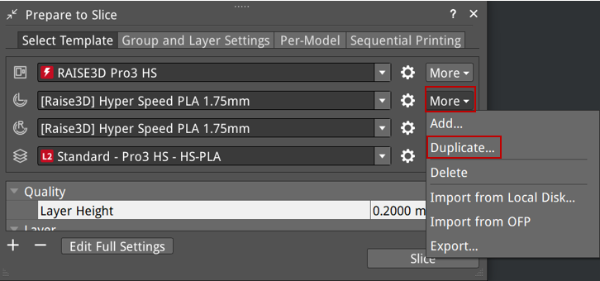
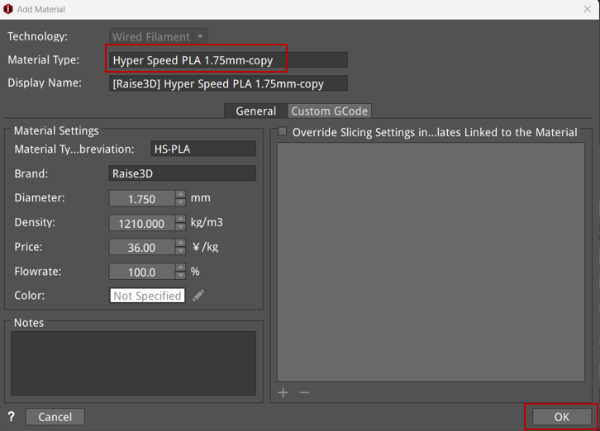
Figure 4: Duplicate the filament.
