

In this version, the customer’s filament template can also be removed. Choose the filament template you want to remove from the Filament Type drop list and select Remove button to remove it.
Note: This function only works for the template which was added by duplicate.
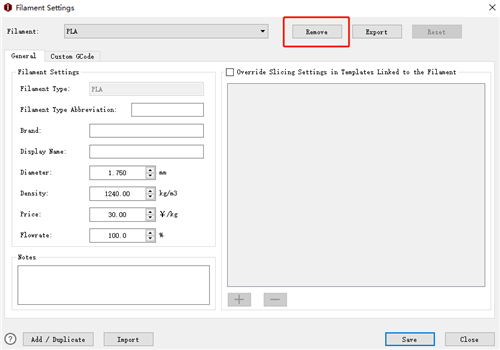
Figure 1: Remove the selected filament settings.
If you want to remove the slicing templates under this filament, then check the ones you want to remove from the list on the left side. Then select "OK". The selected slicing templates will be removed.
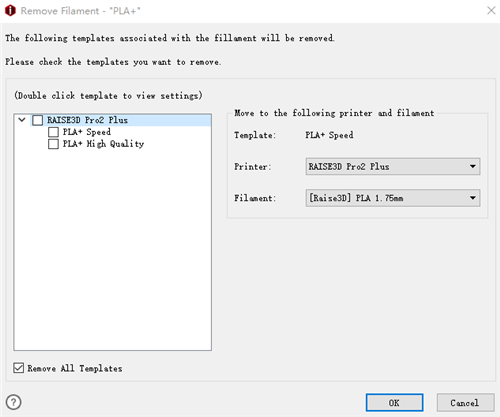
Figure 2: Remove the slicing templates.
If you do not want to keep any slicing template under this filament type, check Remove All templates below. It will check all the slicing templates above. Then click "OK" button. All the slicing templates under this filament type will be removed together with this filament.
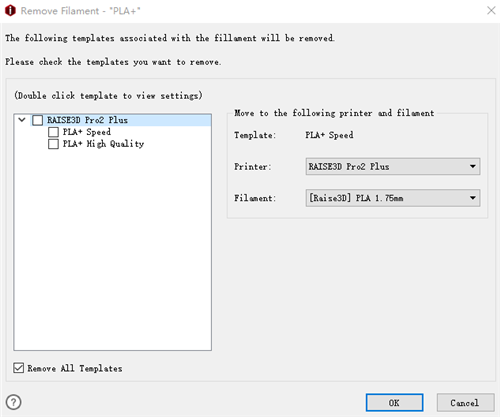
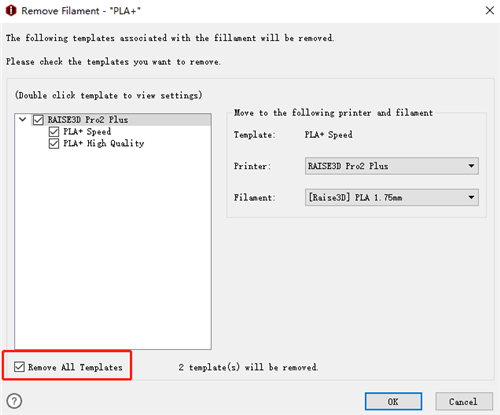
Figure 3: Remove All Templates.
If you want to keep one slicing template, please first make sure that it has been unchecked.
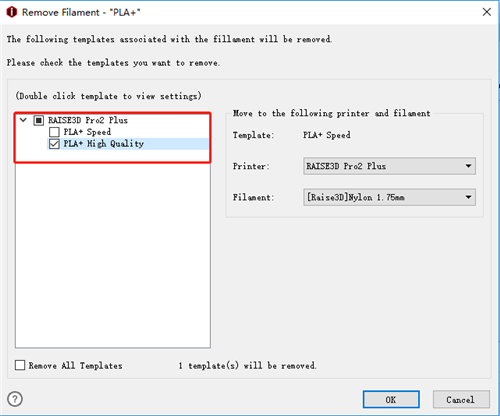
Figure 4: Remove the selected Templates.
Select it and choose the Printer and Filament at right side for it. Then press "OK" button below. The filament template will be removed, but this slicing template will be saved under the printer "RAISE3D Pro2 Plus" and the filament "RAISE3D PLA 1.75mm" in this case.
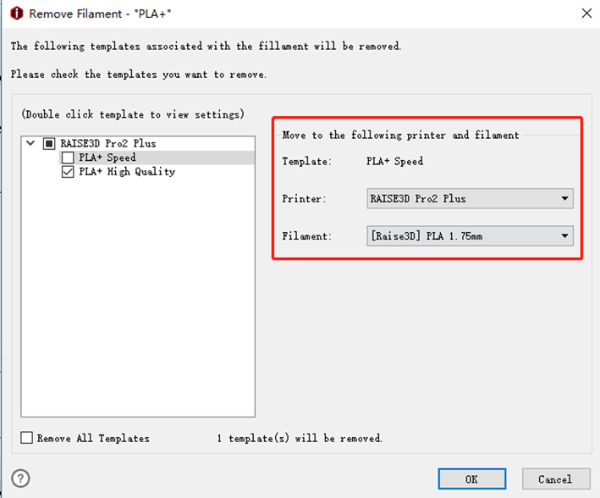
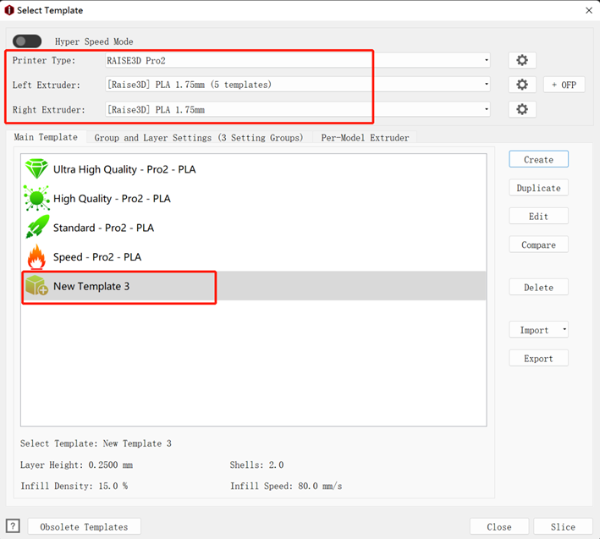
Figure 5: Remove the selected Templates.
-END-
