

Add a new printer refers to creating a new printer template.
Option 1: Add printer in Printer > Printer Settings.
Step 1:Click Add icon as Figure 1.
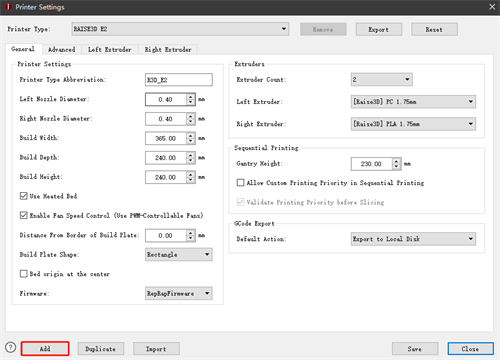
Figure 1: Add Printer.
Step 2:Choose the Printer you need as shown in Figure 2.
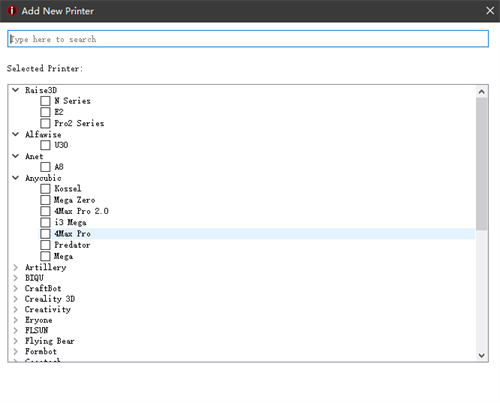
Figure 2: Choose Printer.
Step 3:Download the printer’s profile from ideaMaker Library as shown in Figure 3.
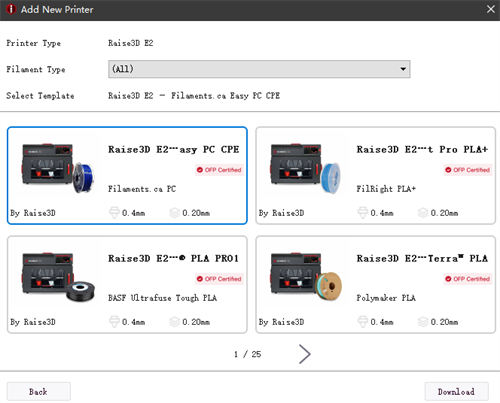
Figure 3: Download the printer’s profile.
Step 4:Import the printer’s profile to ideaMaker as shown in Figure 4.
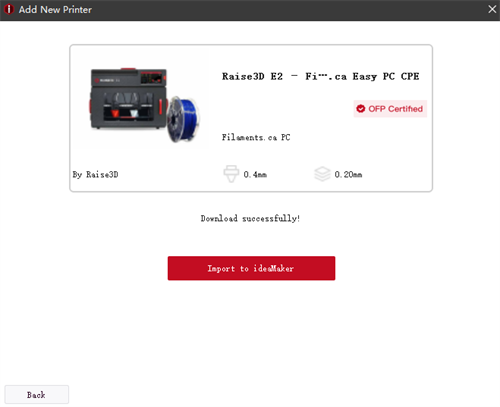
Figure 4: Import to ideaMaker.
Option 2: Enter Select template tab and click gear icon.
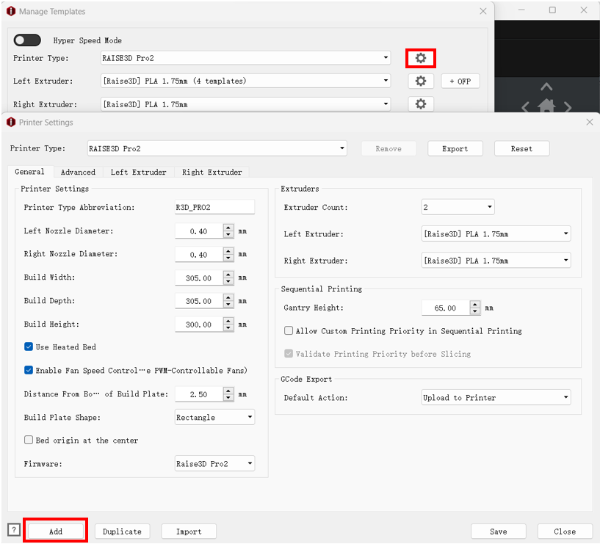
Figure 5: Add a new printer.
-END-
